Making and managing bookings
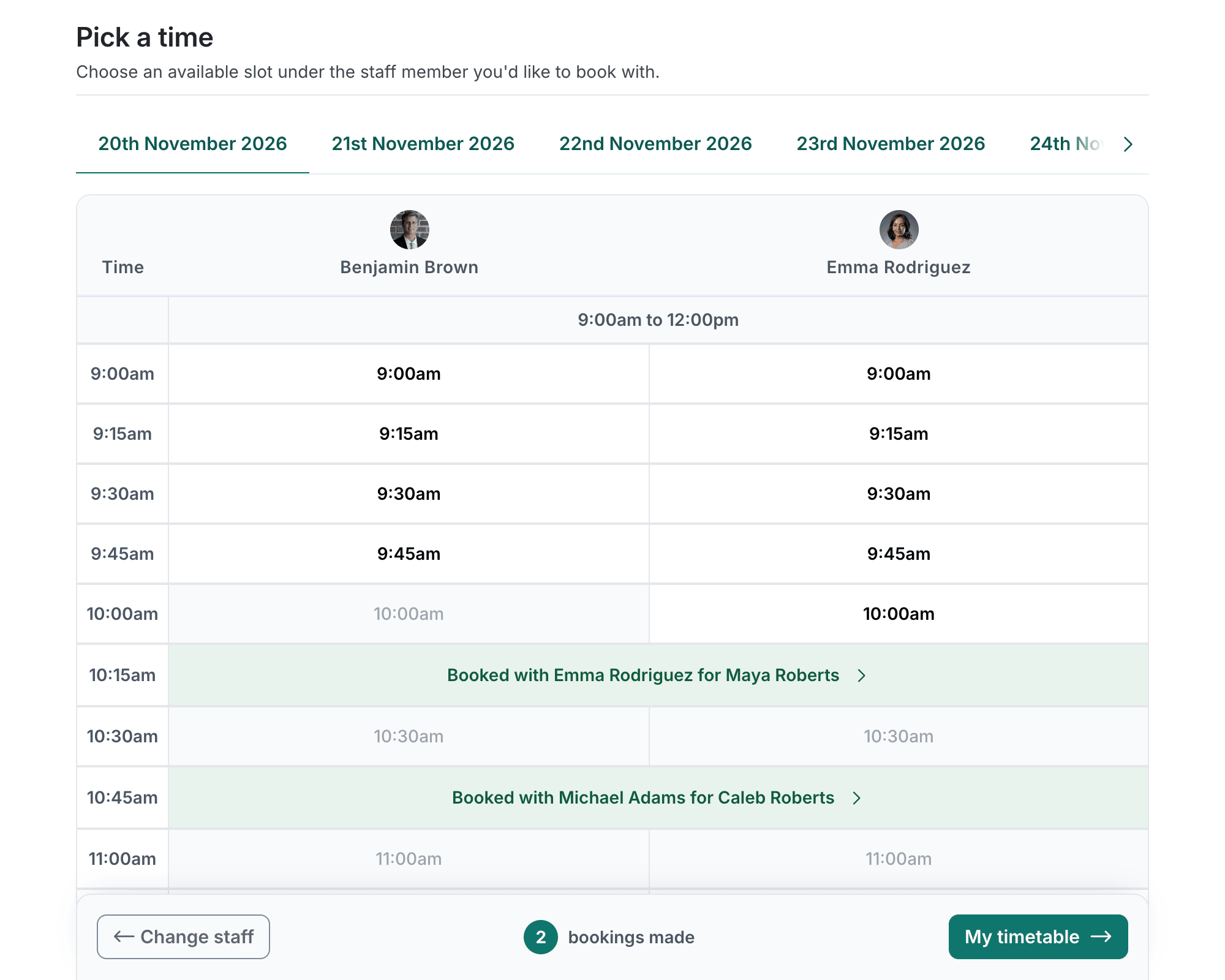
After registration, you'll be taken to the booking page where you can select appointment times.
How to book an appointment
- If the event runs across more than one day, choose a date from the tabs.
- Find the staff member you want to meet, and click an available time.
- Choose which student the booking is for, if you're asked.
- Add a comment or answer any booking questions, if there are any.
- Click Confirm booking.
Viewing your timetable
To view all your confirmed bookings, sign in to your school's event website using your email address. You can either click the sign-in link in any of the emails you have received from Parent Events, or visit the school's event website directly and use the Manage my bookings option, which will send a fresh sign-in link to your inbox. Once you are signed in, the homepage of the school's event website shows your bookings for your next event day, and every booking appears on your timetable for the event.
Your timetable can also be reached from your profile page, which lists every event at this school you are currently registered for.
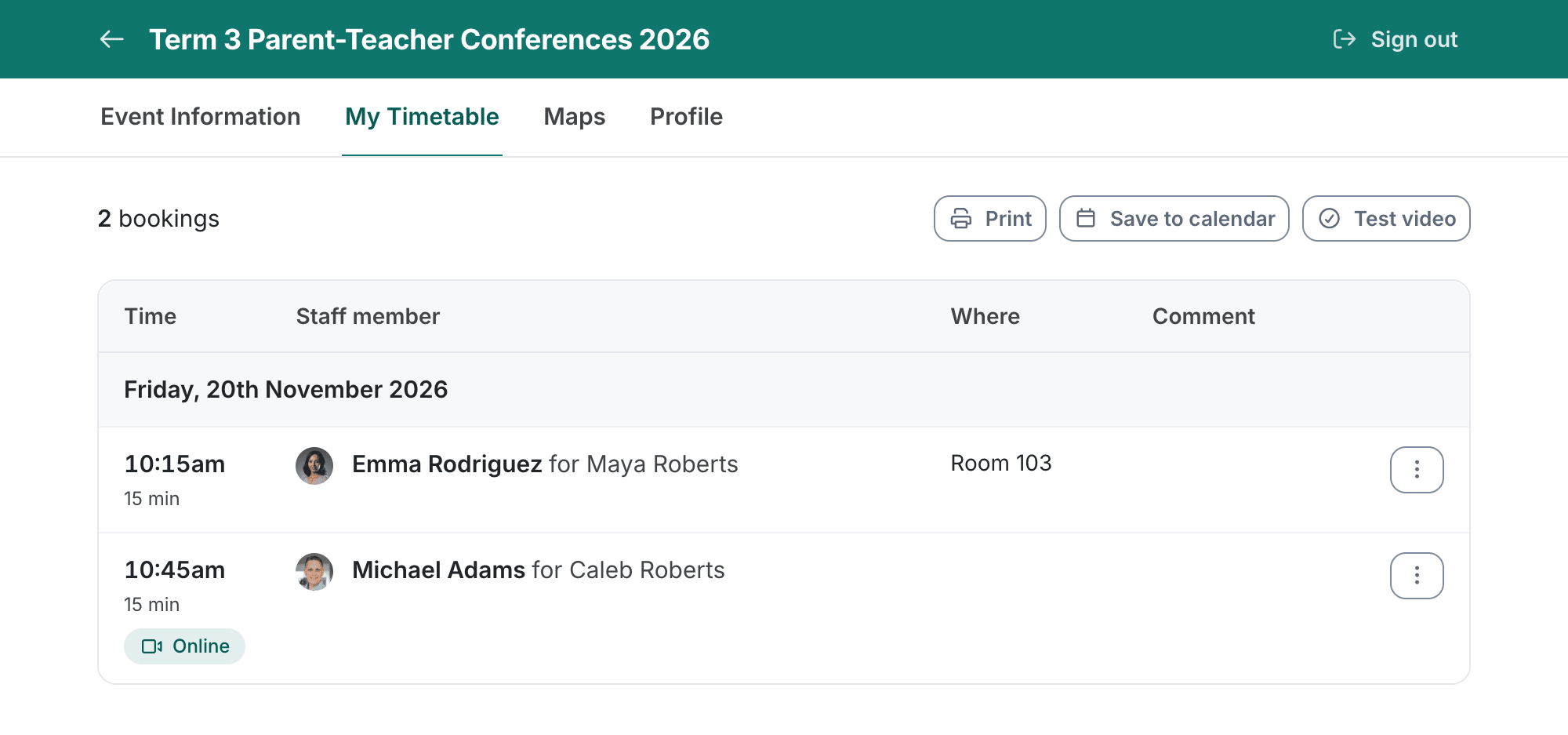
Your timetable shows:
- Date and time of each appointment
- Staff member you're meeting with (if applicable)
- Student the booking is for
- Comments you've added
You can also save your timetable to bring with you:
- Print opens a PDF of your timetable, which you can print or keep on your phone.
- Save to calendar downloads an
.icsfile you can open in Google Calendar, Outlook, Apple Calendar or any other calendar app, which will then remind you based on your calendar's own settings.
Cancelling bookings
If you need to cancel an appointment:
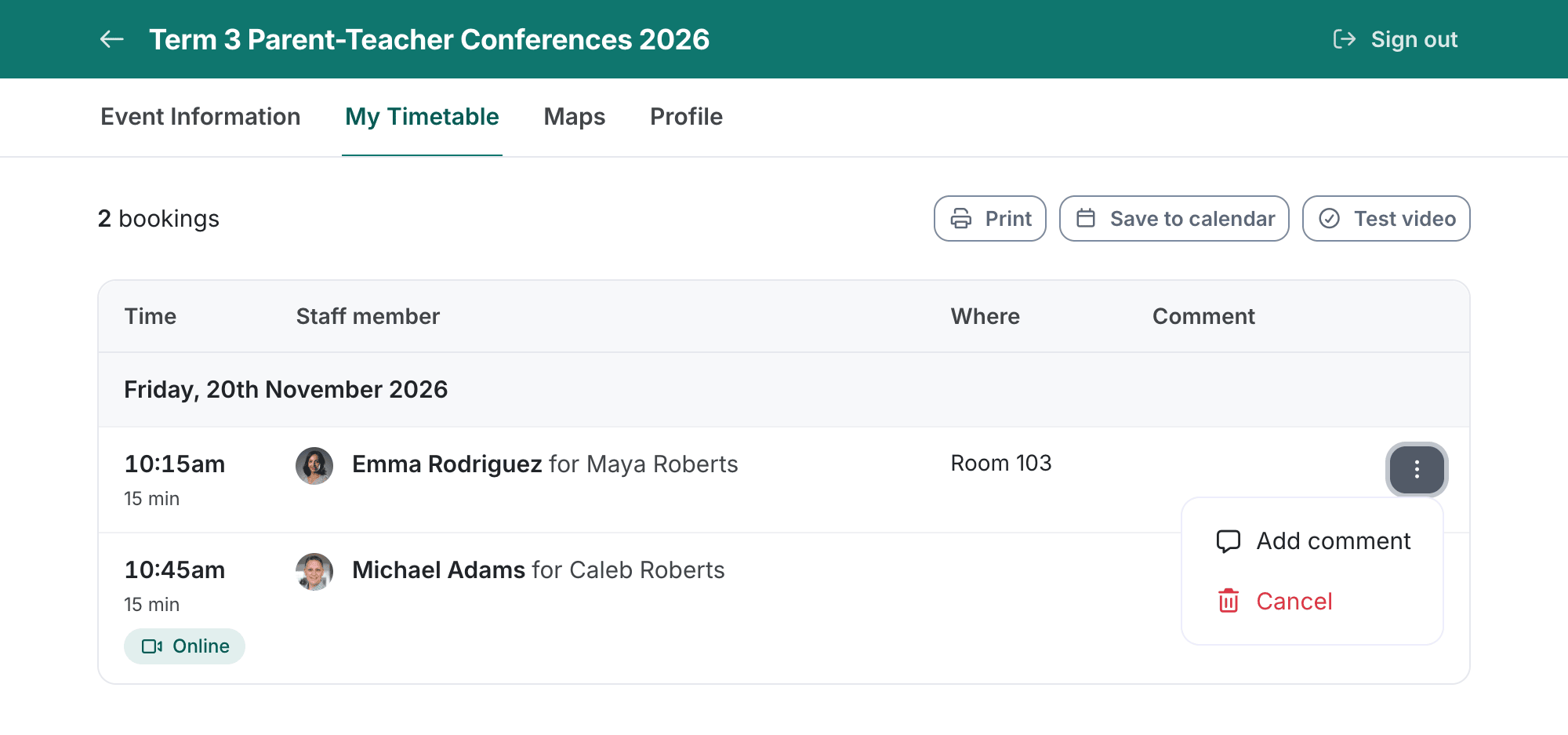
- Go to your timetable for the event.
- Open the actions menu next to the booking, and click Cancel.
- Confirm the cancellation.
You can also cancel from the booking page by clicking on one of your bookings.
You can cancel a booking at any time, including after the event has closed for new bookings. Once the event has closed you won't be able to book a new time, so contact your school if you need one.
Adding or editing comments
You can leave a comment on a booking, such as what you'd like to talk about, to help staff prepare for your meeting:
- Go to your timetable for the event.
- Click the comment icon next to the booking.
- Enter or update your comment, and save it.
Some schools turn comments off for an event. If you don't see the comment option on your timetable, contact your school directly with anything you'd like staff to know ahead of time.