Bookings
A booking is a time slot a parent or caregiver has chosen at an event. Most Parent Events events have bookings, but some don't need them.
What a booking contains depends on the type of event. For example, bookings for a uniform fitting event won't be assigned a staff member.
Registration-only vs. bookings
Some event types allow you to choose whether bookings are required:
- With registration only, attendees register and fill in your form, but don't book a time. Use this when you only need to collect details.
- With registration with bookings, attendees register and then book one or more time slots.
Viewing bookings
- Staff
- Event Managers / Administrators
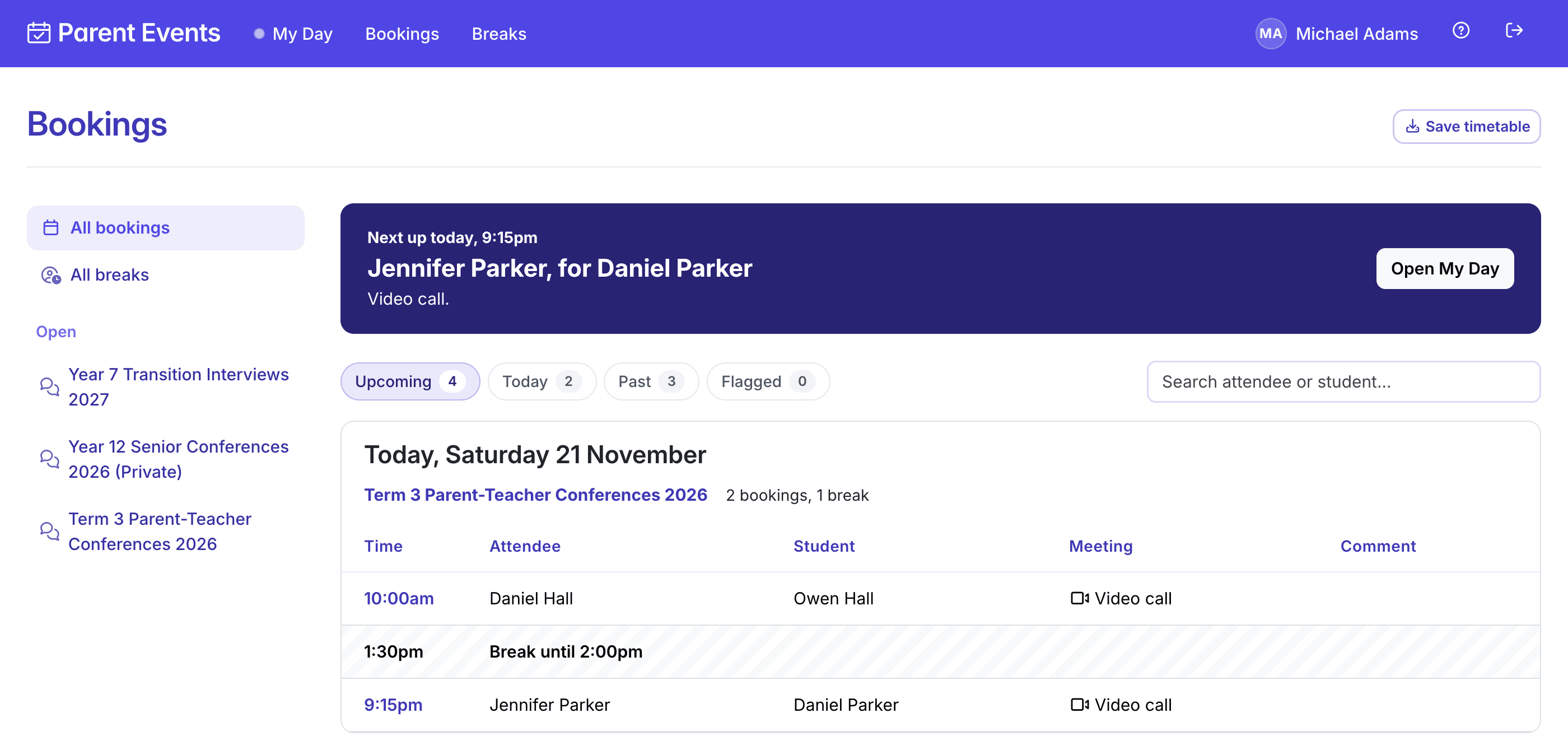
Click on Bookings in the main menu to see your bookings across all of your events, grouped by day. Bookings made with a staff group you belong to are included, and your breaks are shown between them.
- Choose Upcoming, Today, Past or Flagged to change which bookings are shown. Flagged lists every booking you've flagged for follow-up.
- Type in the search box to find a parent or student. The list updates as you type.
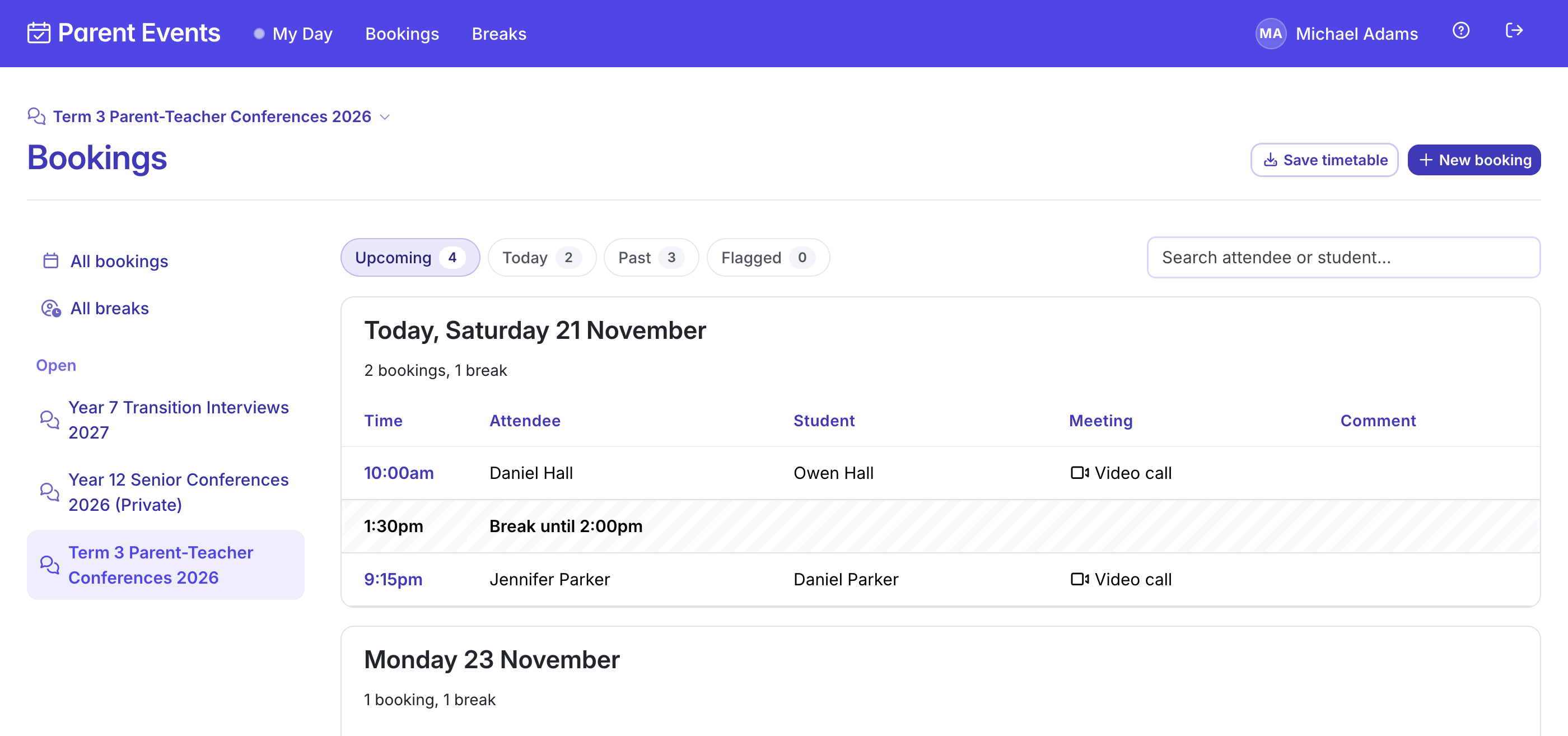
- To see one event's bookings, choose it in the menu on the left. That event's bookings are shown the same way, with Save timetable and New booking at the top.
When you have bookings today, the next one is shown at the top with a link to My Day.
- Click on the Bookings option in the main menu.
- Choose the event you want to view.
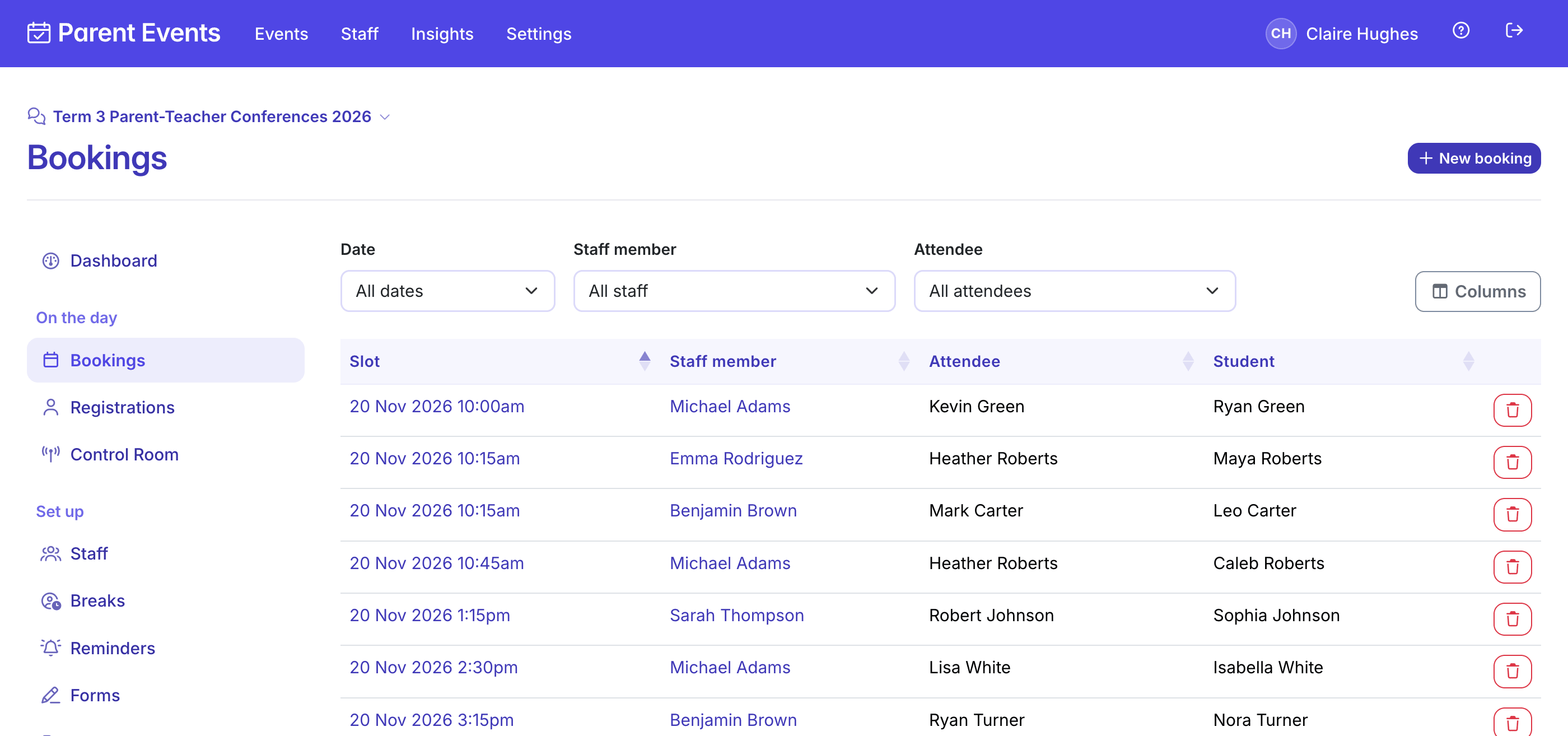
You'll see the list of bookings for the event, which you can filter by attendee, date or staff member, and download.
Viewing an individual booking
Click the time of a booking to open it. The booking shows:
- Meeting: when it is, how long it lasts, the staff member, where it takes place, the student, and who made the booking.
- From the attendee: their comment and their answers to the booking and registration forms. Questions they didn't answer are tucked away under Show unanswered questions.
- Notes: the profile notes shared with staff, and your own private notes.
- The attendee's contact details and their other bookings at the event.
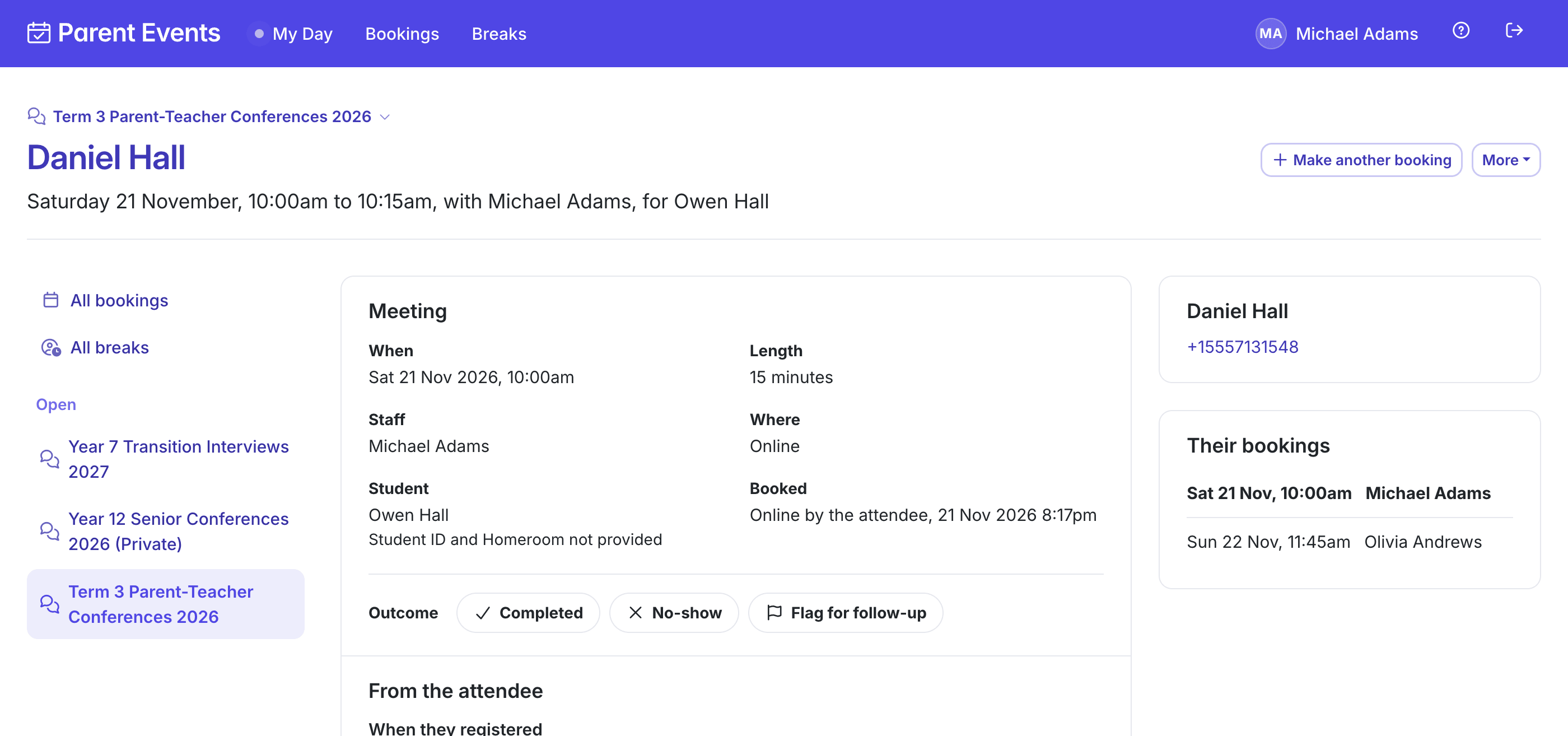
On your own bookings, you can mark the meeting Completed or No-show, flag it for follow-up, and write your private notes, just as you can in My Day. Your notes save as you type, and only you can see them.
Use Make another booking to book more times for the attendee. Cancel booking and Remove from event are under More.
Staff can only open bookings made with them, or with a staff group they belong to. Event Managers and Administrators can open any booking.
Booking comments
Attendees can leave a short comment on each of their bookings from their timetable, such as what they would like to discuss. Comments are shown when viewing the booking, in the staff timetable, and in the Booking Comments report.
Comments are turned on for every new event. If you would rather attendees didn't leave them, untick Allow comments on bookings under Optional features when starting an event, or later from the event's Settings page. The comment column and the Booking Comments report are hidden while this is off.
Downloading a timetable
Open an event's bookings, then use the Save timetable button.
- Staff download their own timetable as a PDF, the same one they receive in their reminder emails.
- Event Managers and Administrators download the bookings shown as a PDF or CSV file. For a PDF, you can also choose the page orientation.
Cancelling a booking
If you need to cancel a booking for an attendee, open the booking and choose More > Cancel booking. Event Managers and Administrators can also click the trash-can icon in an event's list of bookings.
You'll be asked to confirm the cancellation before it takes effect. Once cancelled, other attendees will be able to make a booking for that time.
If you can't see the option to cancel, your school or organization may not allow staff to cancel bookings. An administrator can change this from the staff permissions settings.
Rescheduling bookings to a different date
If your event has bookings on a date that was removed, you can bulk reschedule all bookings and staff breaks from one date to another.
This is accessible from the Dates and Times settings page for your event. If any bookings exist on dates that are no longer part of the event, a warning will be shown with a link to the rescheduling tool.
How it works
-
Choose the date to move bookings from, and the date to move them to.
-
Choose what to do when a booking cannot be moved because the target time slot is already full:
- Leave the booking on the original date: the booking stays where it is.
- Move it anyway: the booking is moved even if the slot is over capacity.
- Cancel the booking: the booking is cancelled.
-
Optionally send email notifications to affected attendees:
- Notify moved attendees emails each attendee whose booking was moved, with the old and new times.
- Notify cancelled attendees emails each attendee whose booking was cancelled because the new time was full.
Each email can include your own message.
-
Review a summary of how many bookings will be moved, left in place, or cancelled before confirming.
Attendees will only receive a notification if they have email notifications enabled.
Staff breaks on the original date are also moved to the corresponding time on the new date where possible.