Breaks
Breaks block out time slots for a staff member so families can't book them, such as when a teacher can't stay for the whole event.
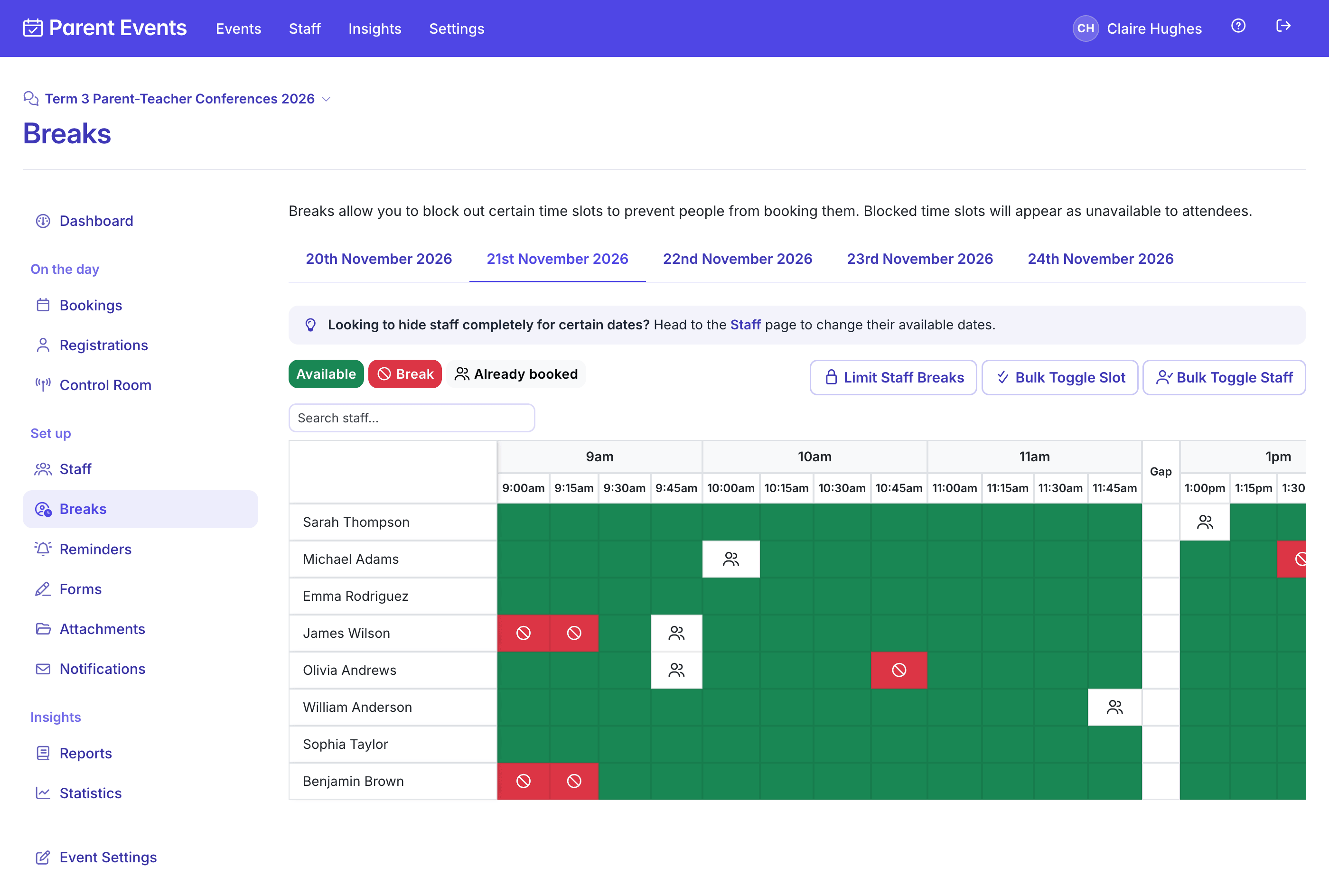
Attendees see a break as unavailable. Staff making a booking can still book it, but are warned that the time is a break.
Breaks can be managed by Event Managers and Administrators for all staff and are available on events with bookings enabled.
Staff can also manage their own breaks if your school or organization allows it.
Setting breaks
- Staff
- Event Managers / Administrators
Click on Breaks in the main menu to see your upcoming breaks across all of your events, grouped by day. Breaks that run on from each other are shown as one, with their length.
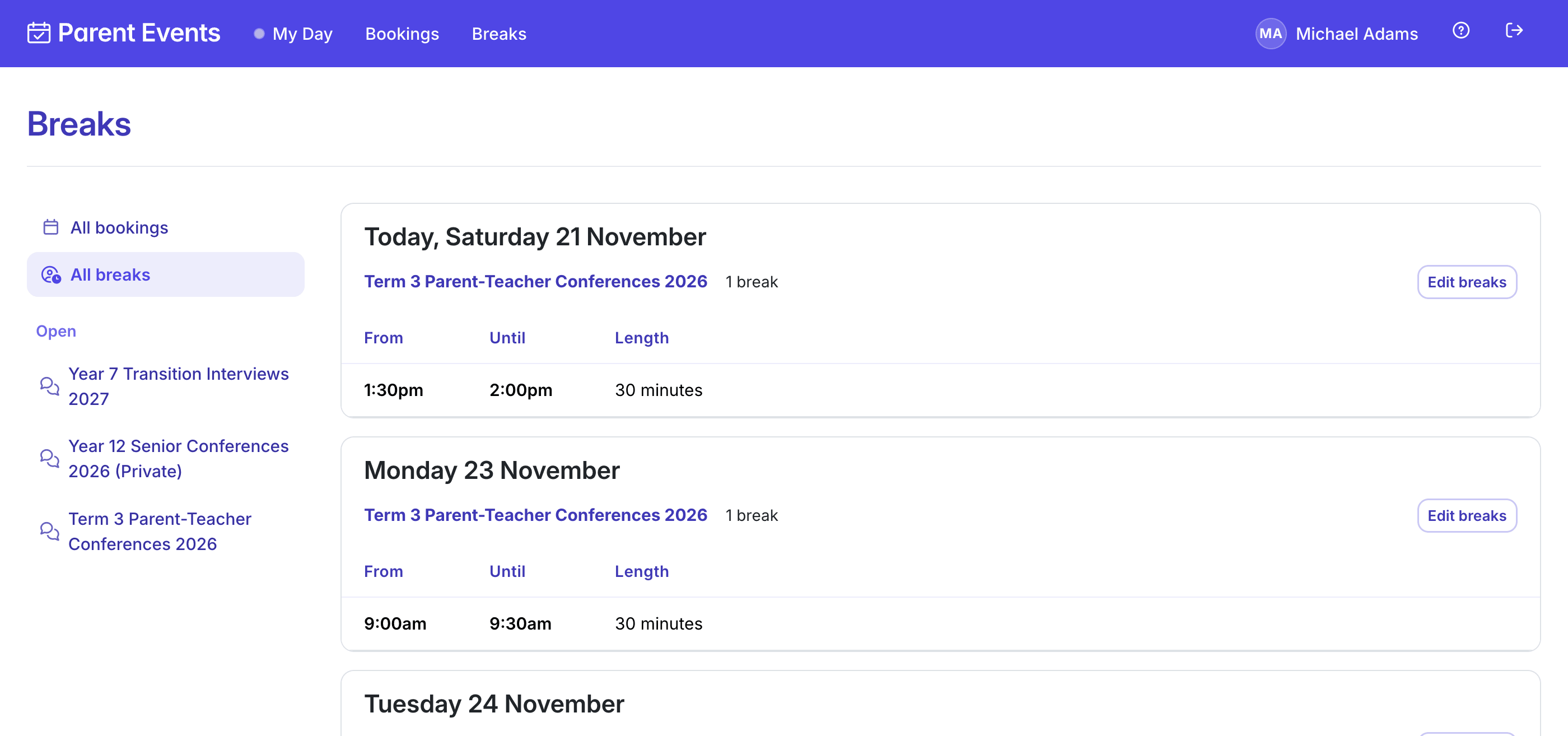
To set or change breaks:
- Click Edit breaks next to a day, or choose an event in the menu on the left.
- Choose the date you'd like to manage.
- Click on a time slot to toggle it between available and blocked.
If the event limits how many breaks staff can set, the page shows how many you've used on that date.
- Click on Events in the main menu.
- Choose the event name from the list, and click Settings > Breaks.
- Choose the date you'd like to manage.
- Click on a time slot to toggle it between available and blocked.
Changes to breaks take immediate effect. Only time slots without a booking can be toggled. If you need to set a break on a time slot with a booking, you'll need to cancel the booking first.
Limiting staff breaks
If your school or organization allows staff to set their own breaks, you can limit the number of breaks they can set themselves on a per-event basis. This stops staff blocking out large parts of the event.
Use the Limit Staff Breaks option to set the most breaks a staff member can set on each date. Set it to 0 for no limit.
Staff who try to go over the limit see an error, and need an Event Manager or Administrator to make the change for them.
Bulk toggling time slots
To mark a time slot as available or unavailable for every staff member at once, use Bulk Toggle Slot.
This will not affect any existing bookings for the chosen time slot.