Forms
Forms let you ask attendees your own questions when they register, when they make a booking, and after the event.
Each event can have one of each of the three types of form, and each form can have as many questions as you need.
Types of forms
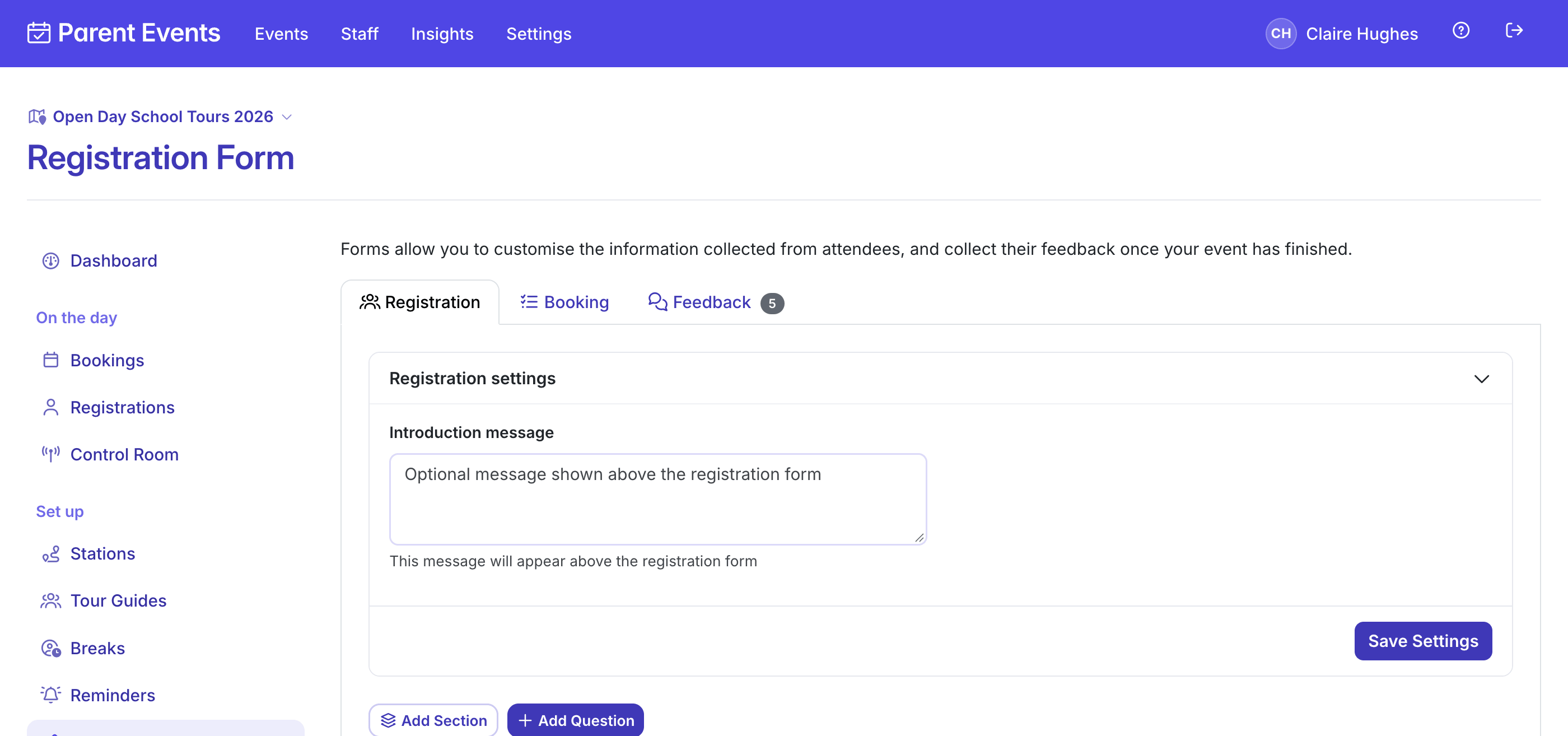
Registration form
A registration form is filled in once, when an attendee registers for your event. Schools use it for accessibility requirements, contact preferences, or extra information about students.
For registration-only events, such as enrollment or tour events without bookings, the registration form is how you collect everything you need from families.
You can choose whether the answers are visible to all staff as part of their bookings, or only to Event Managers and Administrators.
Booking form
A booking form is filled in for each booking an attendee makes. Schools use it for topics to discuss at a conference, requirements for the appointment, or sizes for a uniform fitting.
As with registration forms, you can choose whether all staff or only Event Managers and Administrators can see the answers.
Feedback form
A feedback form is emailed to attendees after your event, so they can tell you how it went. Schools use it for satisfaction ratings, suggestions for next time, or comments on staff and facilities.
Feedback responses are only visible to Event Managers and Administrators.
Types of questions
- Single-line text for short answers, such as a uniform size.
- Multi-line text for longer answers and comments.
- Dropdown to choose one option from a menu.
- Radio to choose one option from a list of buttons.
- Checkbox to choose any number of options.
- Rating for a rating from 1 to 5 stars.
Setting up a form
- Go to the Events page and click on the name of your event.
- Click Forms.
- Click Set up or Edit form on the form type you want to configure.
- Click Add Question to add a new question to the form.
- Enter your question, choose the question type, and set whether it's required.
You can add as many questions as you need to each form.
Configuring feedback settings
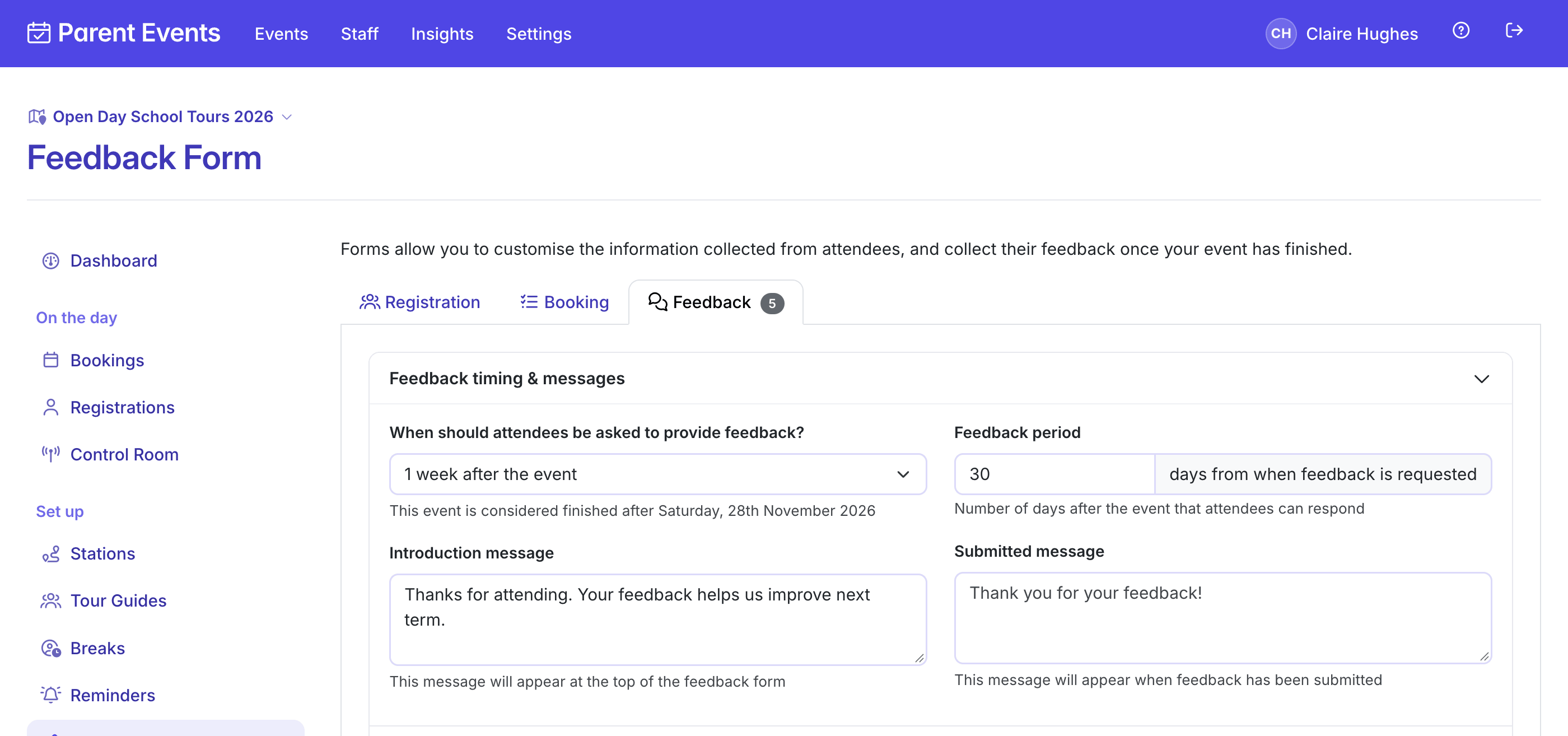
Feedback forms have extra settings for when feedback is collected:
- Go to the Events page and click on the name of your event.
- Click Forms.
- Click Edit form on the Feedback form card.
- Configure the following settings:
- When to send feedback requests is how many days after the event attendees are emailed.
- Feedback period is how many days they have to respond.
- Introduction message is shown at the top of the form, if you add one.
- Submitted message is shown once they've submitted their feedback, if you add one.
When feedback is sent
Feedback requests are emailed automatically to attendees who have at least one booking, haven't opted out of emails, and haven't already given feedback.
Each attendee receives a link that expires after the configured feedback period.
No feedback emails are sent if your feedback form is set to Don't ask for feedback.
Viewing feedback responses
To see the feedback attendees have given:
- Go to the Events page and click on the name of your event.
- Click Forms.
- Click View responses on the Feedback form card.
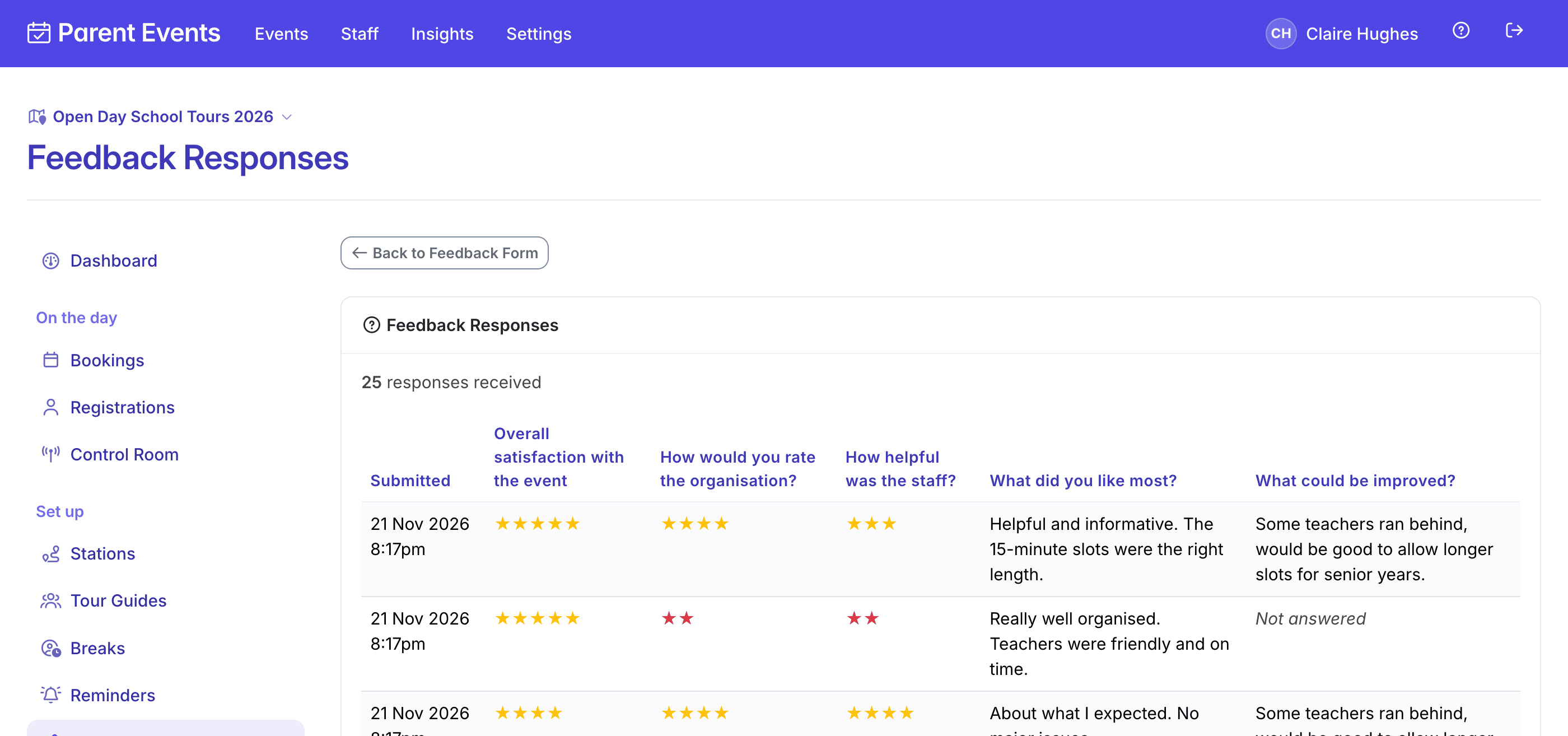
The responses page shows each response with its answers and when it was submitted, and the total number of responses. Responses can also be downloaded as a CSV or PDF file using the Reports section of the event.
Removing a question
Removing a question will permanently delete all responses collected for that question. This cannot be undone.
- Go to the Events page and click on the name of your event.
- Click Forms.
- Click Edit form on the form type containing the question.
- Click the trash icon next to the question you want to remove.
- Confirm the deletion.
Tips
- Only ask for what you need. Families are more likely to finish a short form.
- Make a question required only if you can't run the event without the answer.
- Register as a test attendee before you publish, to check your forms read the way you expect.