Uniform fitting
A uniform fitting event lets parents and caregivers book a time to visit your uniform shop, or send you their uniform sizes. Bookings aren't made with individual staff members. Instead, you set how many fittings can happen at the same time.
You can run a uniform fitting event as registration only, where families send you sizes or orders, or as registration with bookings, where they book a fitting time.
Choosing your uniform format
Registration only
Families register and give you their sizes or order, and no fitting times are booked. This suits taking orders without fittings, handing out pre-ordered uniforms, or drop-in shop hours.
Registration with bookings
Families book a fitting time, up to the number of fittings you can run at once. This suits uniform shops with limited space or staff, where you want to avoid crowds.
Step 1: Create your event
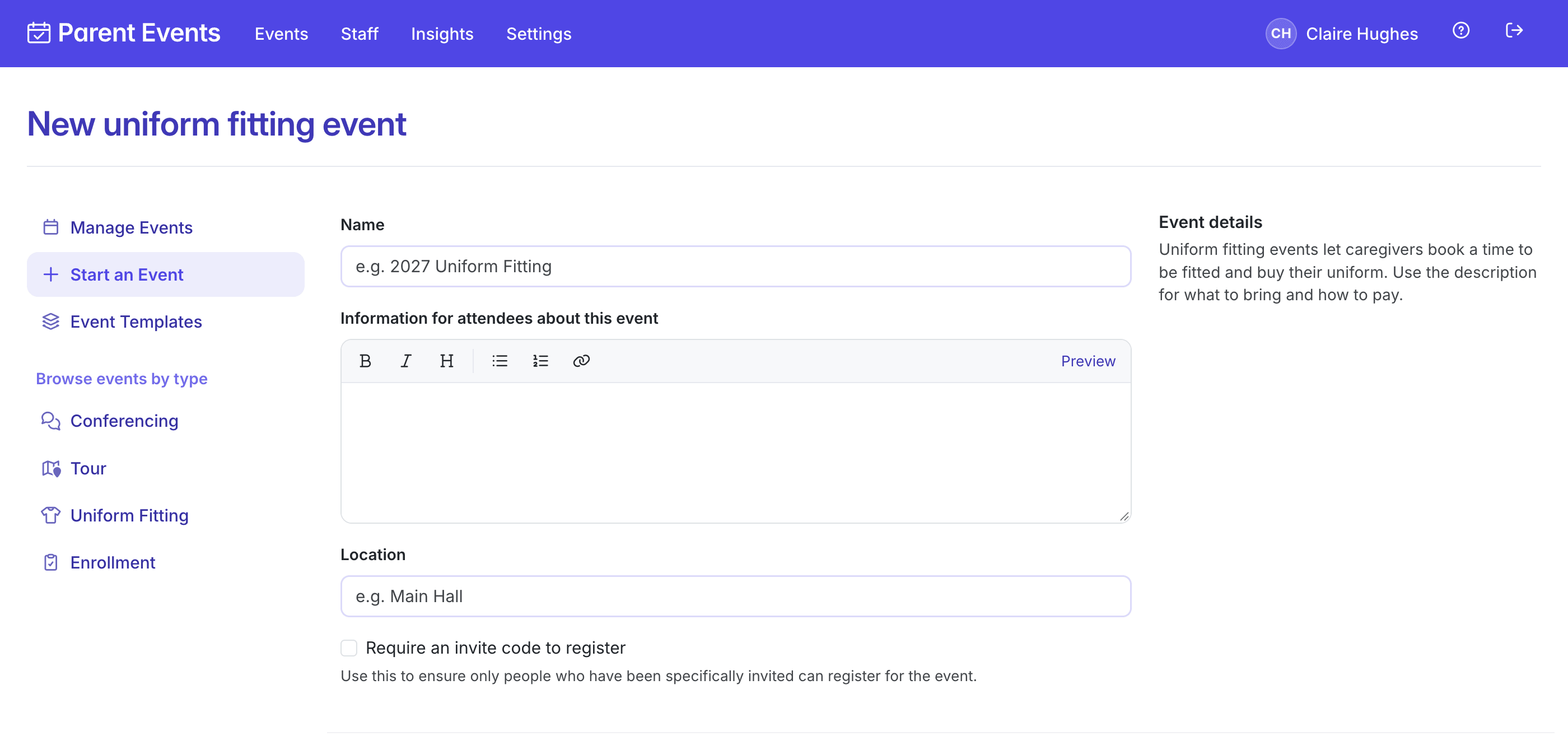
Sign in to Parent Events and select Start an Event from the Events menu.
- Choose Uniform fitting as your event type.
- Choose Registration only or Registration with bookings.
- Fill in the event's name (such as "2026 Uniform Fittings" or "Year 7 Uniform Collection"), a description of what families should bring, where the uniform shop is, the event dates, and the open and close dates for when families can register or book.
Step 2: Set fitting capacity (if using bookings)
Set the number of fittings that can happen at the same time. If you have three changing rooms, set it to three.
Then set the booking length (fittings are usually 15 to 30 minutes) and the times you're open for fittings.
Start with a lower capacity than you think you can manage. It's easier to add more fittings later than to deal with a crowded shop.
Step 3: Set up your registration form
Add questions to your registration form for what you need to know, such as:
- each student's year level
- their sizes or measurements, if they know them
- which items they need, and how many of each
For registration-only events, use the form to take the whole order. For events with bookings, you might ask for less and do the sizing at the fitting.
See forms for the question types available.
Step 4: Configure event settings
Most uniform fittings are private, for current families only. Make the event public if anyone can buy from your shop.
Choose a booking limit if you want to stop families booking more than one fitting. Families with an appointment receive a reminder email automatically on the morning of their fitting.
Step 5: Publish and share
- Publish your event.
- Send the event code or link to current families, and include it in welcome packs for new families.
Step 6: Manage bookings and fittings
As bookings come in:
- see every registration and its answers in Registrations
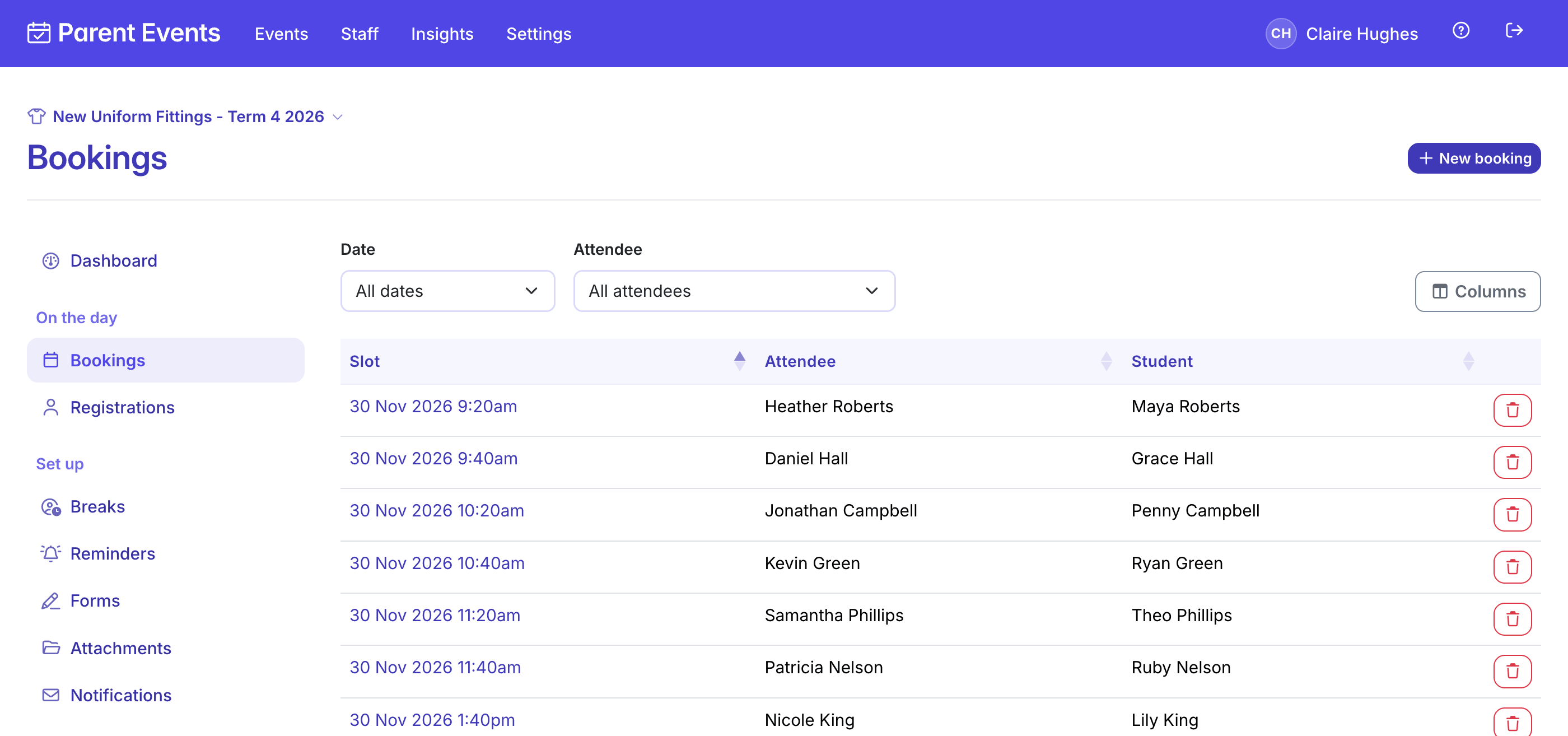
- check the fitting schedule in Bookings, and add more times if it fills up
- download the orders from Reports
Parent Events doesn't take payments, so handle these through your uniform shop as usual.
Step 7: Follow up
After your fittings, check the event's statistics for attendance, and contact any families who didn't come, or who are waiting on back-ordered items.
Common setups
Back-to-school fittings
Run several days with a higher capacity, and use separate time blocks for each year level to spread families out.
New students
Run a separate event for new students, with a longer booking length, since they'll need help with sizing and your uniform requirements.
Collecting pre-ordered uniforms
Use registration only, so families tell you when they plan to collect without booking a time.