Event Control Room
The Event Control Room is a live view of an event for Event Managers and Administrators. It shows every staff member's current status and who is running late, lets you message staff, and lets you join an online meeting silently to check on it.
When to use it
The control room is most useful while an event is running, but you can open it on any date, such as for a rehearsal the day before or to review the event afterwards. On a day with no bookings, staff show as Off today.
Opening the control room
- Open the event from the Events menu.
- Click Control Room in the event navigation.
The control room opens full-width, for use on a tablet, laptop, or second monitor. A toggle in the top-right corner switches between light and dark themes, and your choice is remembered.
What the page shows
The control room has a summary across the top, the staff grid, and a side panel for messaging staff.
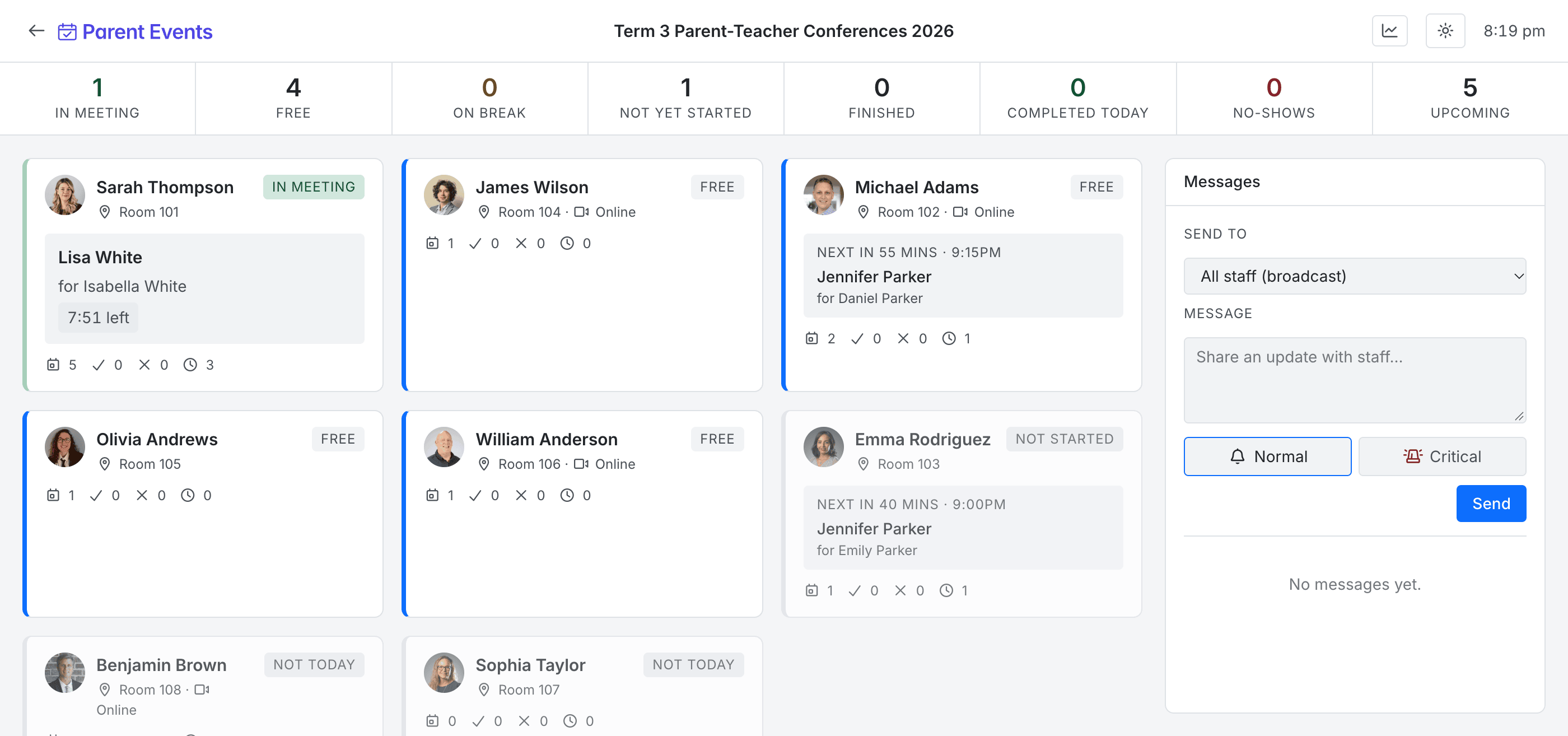
Summary
The strip across the top counts how many staff are in a meeting, on a break, free, not yet started, finished for the day, or off today, and how many are running late. It refreshes every ten seconds.
Staff grid
The grid has a card for every staff member at the event, showing their status, their current and next booking, and how their day is going. Staff who are running late or about to start a meeting are shown first.
Each staff member's status is one of:
- In meeting, in a booked time slot now.
- On break, on a scheduled break.
- Running late, with past bookings not yet marked as completed or no-show.
- Free, between bookings.
- Not started, with their first booking of the day still to come.
- Finished, with all of their bookings for the day done.
- Off today, not scheduled on this date.
A staff member counts as running late until they mark their earlier bookings in My Day, so someone whose last meeting overran shows as running late until they catch up.
For online bookings, a button on the active card lets you jump into the staff member's meeting room as a silent observer (described below).
Messages
The Messages panel on the right sends a message to All staff, or to one staff member you choose. Each message is either Normal, for routine updates, or Critical, for anything that needs attention straight away, such as an evacuation or a major change to the schedule.
Messages appear in the staff member's My Day page as a banner with a chime, and stay until they dismiss it. Every message sent is kept, so you can look back at what was sent and when.
Jumping into an online meeting
While an online booking is in progress, the staff member's card has a Join silently button. This only works for Parent Events video meetings, not for staff who use their own meeting link. It opens the meeting in a small window with your camera and microphone off, so you can check on it without interrupting. You appear in the participant list as your name followed by your school's name in brackets.
Use it to support a staff member who is nervous about meeting online, to check that a meeting's audio is working, or to look into a complaint.
Your camera and microphone are off, but everyone in the meeting can see your name. Treat it like walking into a classroom during a lesson, and tell staff about the feature before the event so it doesn't surprise them.
Tips
- Keep the control room open on its own tablet or screen, so you can use your computer for everything else.
- Only message all staff about things that affect everyone, since each message interrupts them between meetings.
- Rehearse the day before. Mark a couple of test bookings as completed, and check your messages reach My Day.