My Day
My Day puts everything a staff member needs for the day's bookings on one page: the schedule, the video room, shared profile notes, and your own private notes.
It's most useful if you have online bookings, since the video room is part of the page. In-person bookings appear in the same timeline, and the notes and status options work for both.
Opening My Day
Open My Day from the account menu. It's also linked from the staff calendar feed, and from the printed staff timetable for online events.
Layout
The timeline is on the left, the video room is in the middle, and the details of the current booking are on the right.
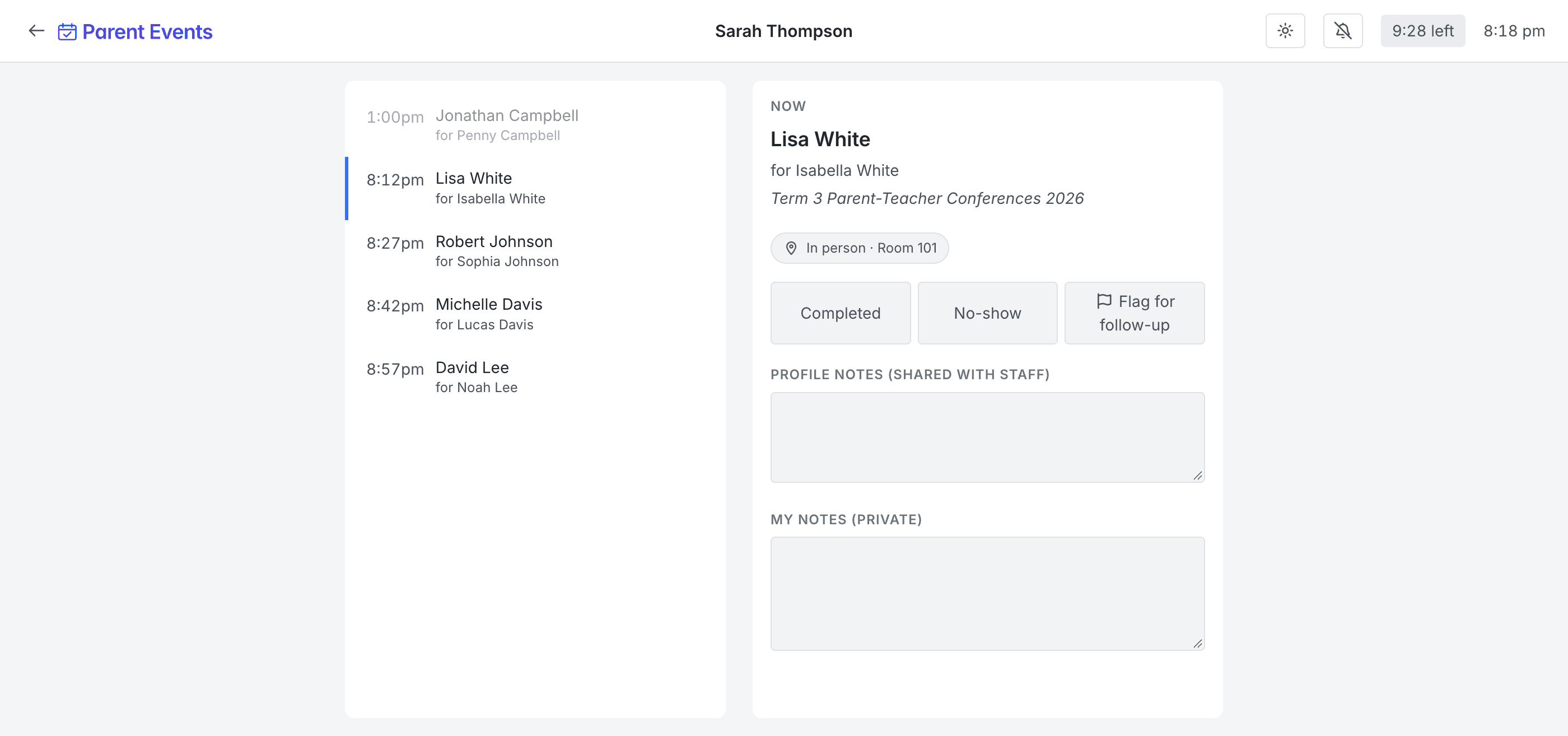
Timeline
The timeline lists your bookings and breaks for the day in order. Breaks that run on from each other are shown as one, with the time they end.
The details panel shows the current booking: the attendee, the student it's for, profile notes other staff have left, your own private notes, and the attendee's answers to the booking form. Click any booking in the timeline, earlier or later in the day, to see its details instead, and click Back to now to return to the current booking.
The current slot is highlighted. A soft chime plays one minute before it ends, and again when it ends. The countdown on the current booking turns amber near the end of the slot and red once it's over, so you can keep to time without watching the clock.
Video room
You stay in the same video room for the whole session, and attendees join it at their booked time and leave when their slot ends.
Attendees wait in a lobby until you let them in. When someone is waiting, the video room asks whether to let them in, and their booking on the timeline is marked Here. Check the name before letting someone in, and only let in the family whose meeting is next. If a meeting runs over, the next family waits in the lobby until you are ready.
Using your own meeting link
If your school has set you up to meet online with your own link, such as a Zoom or Teams meeting, there is no embedded video room. Instead, the current and next booking show an Open meeting button that opens your meeting in a new tab. Keep that meeting open for the session, and use its waiting room or lobby to let each family in. The timeline, chimes, countdown and notes all work in the same way.
Notes
Two kinds of notes are available on each booking.
Profile notes belong to the family's profile, and every staff member who meets the family can see them, at this event and future ones. Use them for things everyone meeting the family should know, such as how they prefer to be contacted.
My notes belong to the booking, and only you can see them. Use them for your own reminders to follow up after the meeting.
Marking a booking complete
The details panel has buttons to mark a booking Completed if the meeting happened, or No-show if the attendee didn't arrive. Click the button again to clear a status you set by mistake.
Use Flag for follow-up for anything you need to come back to. Flagged bookings are listed under Flagged on your Bookings page, and at the top of your post-event summary.
Statuses and flags are saved straight away. You can also change them, and your private notes, when viewing the booking after the event.
Tips
- Open My Day a few minutes before your first meeting, so your video room is ready before anyone tries to join.
- Keep profile notes short and factual, since other staff will read them.
- Mark no-shows as they happen, so reports are accurate without tidying up afterwards.