Single sign-on (SSO)
Single sign-on (SSO) lets your staff sign in to Parent Events with their school account through your identity provider (IdP), such as Azure AD, Google Workspace, or any identity provider that supports SAML 2.0.
Once set up, staff sign in from the usual sign-in page by entering their email address and leaving the password blank. They'll be sent to your identity provider, and once they've signed in there, they'll be sent back to Parent Events. Staff need a Parent Events account before they can sign in this way. You can add them yourself, or have accounts created automatically with SCIM provisioning.
Before you begin
- Setting up single sign-on needs your IT staff, so share this page with them.
- Your staff must be added to your Parent Events account before they can use single sign-on.
- Once single sign-on is working, you can enforce it so staff always sign in with your identity provider instead of a Parent Events password.
Setting up single sign-on
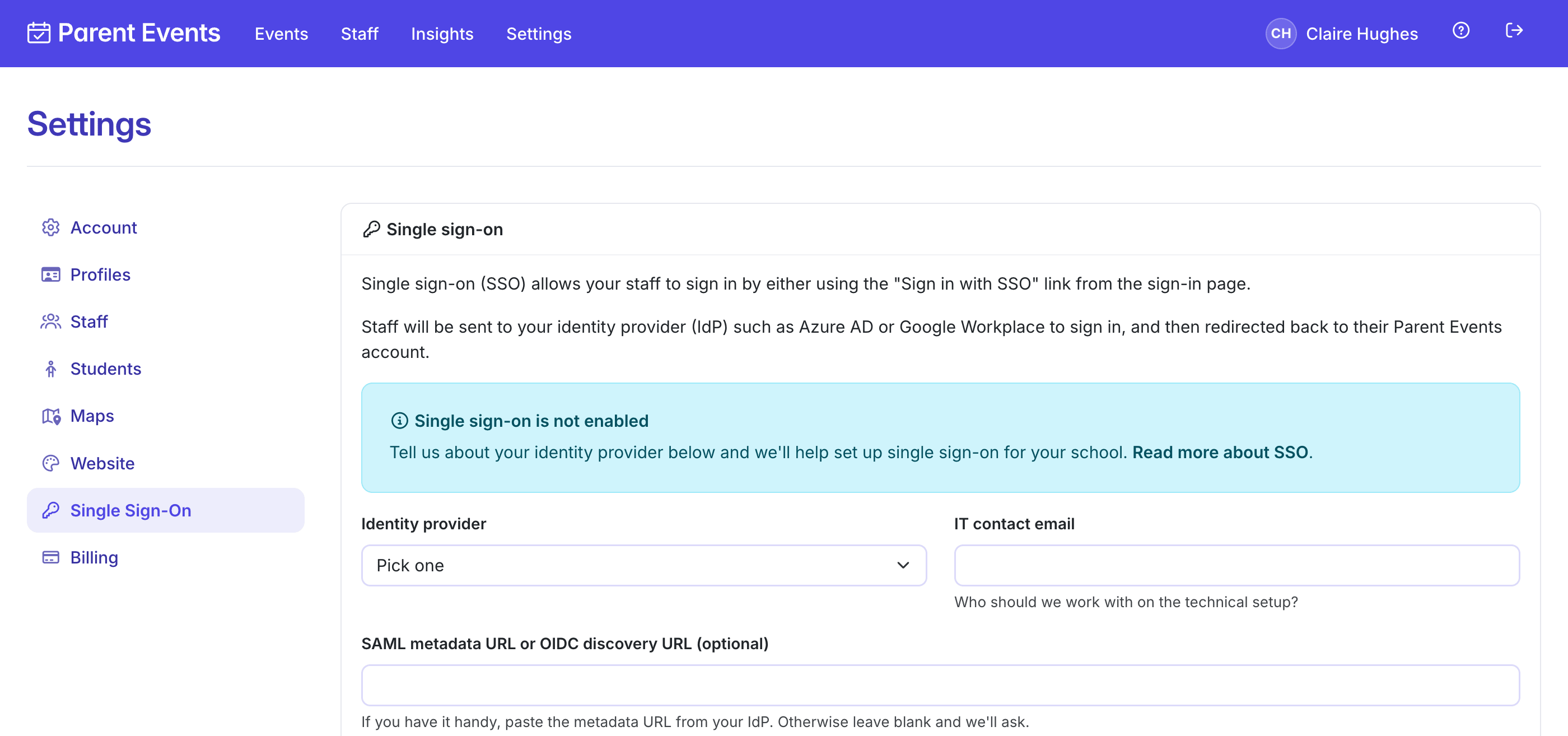
To set up single sign-on, contact our support team with the name of your identity provider (such as Azure AD or Google Workspace), and your SAML metadata XML file or URL.
Your identity provider will need:
- the entity ID
urn:amazon:cognito:sp:ap-southeast-2_zasvjdxZ9 - the reply URL, which our support team will give you
- to send the
http://schemas.xmlsoap.org/ws/2005/05/identity/claims/emailaddressclaim with the user's email address
Once we've checked your details and set up the connection, we'll be in touch. You can test single sign-on before you enforce it for your staff.
Using single sign-on
Once single sign-on has been set up, your staff can sign in from the Sign-in page:
- Enter their school email address.
- Leave the password blank.
- Click Sign in. They'll be redirected to your identity provider.
Staff who also have a Parent Events password can still sign in with it, unless you enforce single sign-on. When single sign-on is enforced, staff are always sent to your identity provider, even if they type a password.
For security reasons, Parent Events does not allow IdP-initiated sign-in. All sign-in requests using your identity provider must be initiated from Parent Events as above.
Automated user provisioning with SCIM
Once single sign-on is configured, you can optionally enable SCIM (System for Cross-domain Identity Management) to automatically sync staff accounts from your identity provider to Parent Events. You then don't need to add, update or remove staff by hand.
If you have more than 20 staff, or staff join and leave often, SCIM saves a lot of manual work.
See the SCIM provisioning documentation for setup instructions.
Need a hand?
If you're not sure whether you can set up single sign-on for your school, contact our support team and we'll do our best to help. We can't guarantee that every identity provider is supported, or give instructions for every setup.