Staff
Staff are the people at your school or organization who use Parent Events. Staff can have different levels of access depending on their role.
Viewing staff
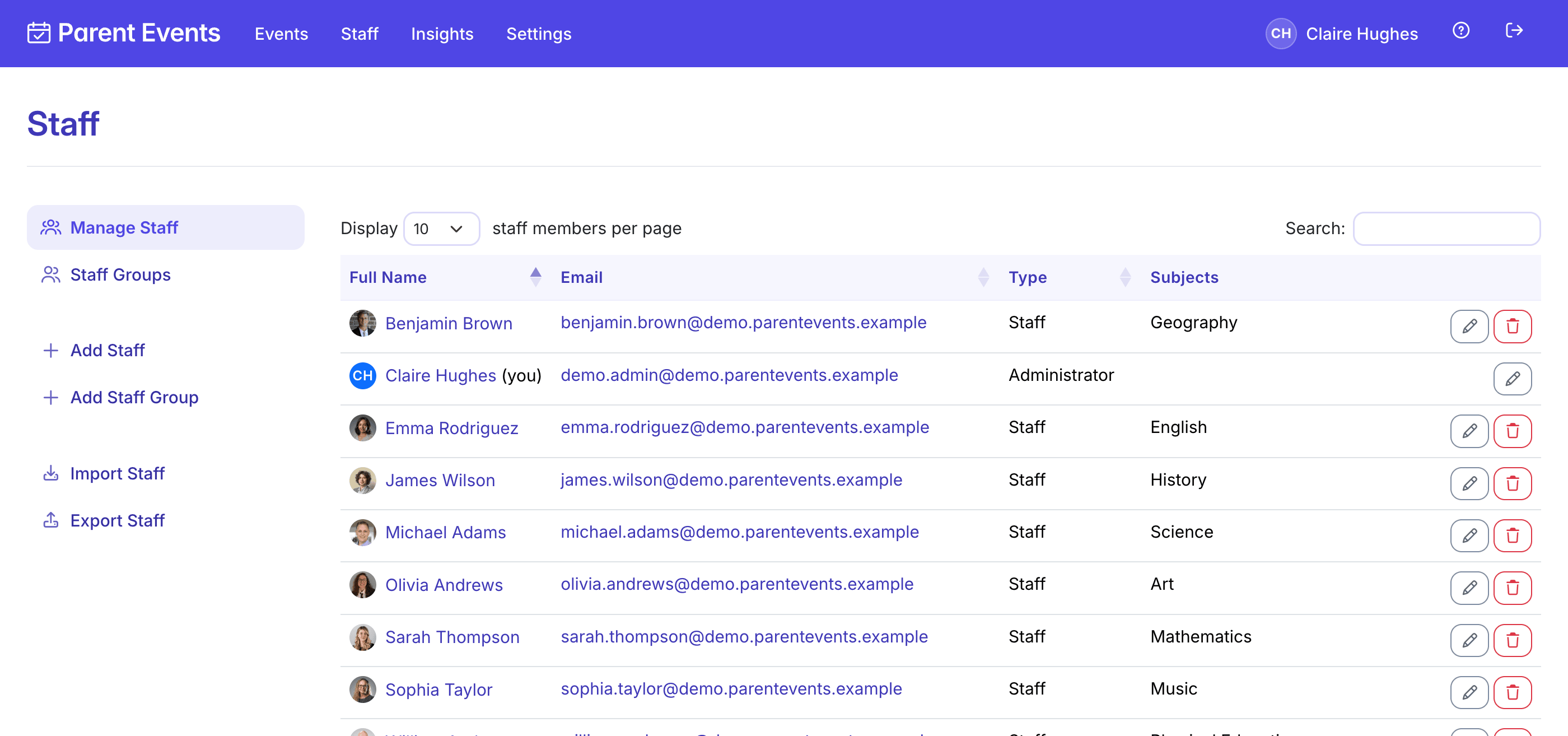
Once you've signed in to Parent Events, go to the Staff section in the main menu to view all staff associated with your account. You must be an Administrator to manage staff.
Inviting a staff member
To invite a staff member, go to the Staff section and click the Add a Staff Member button. You'll be able to choose the level of access that the staff member has to your account.
Once added, we'll email them with instructions on how to activate their account and set a password.
Who should be added
- staff families will book at parent-teacher conferences
- staff who set up events or act for families, such as your leadership team, or receptionists taking phone bookings
- staff who manage billing, such as your financial controller
Bulk-inviting multiple staff members
See bulk-inviting staff.
Default room and meeting link
Each staff member can have a default location, such as their classroom, and a default meeting link, such as their personal Zoom room. These are filled in for you when the staff member is added to an event, so you don't need to type them every time. The default meeting link is only used when the staff member is set to meet online with their own link, and must start with https://.
Staff managed by SCIM provisioning get these from your identity provider instead.
Updating a staff member
To update the information for a particular staff member:
- Go to the Staff section in the main menu.
- Click the staff member's name.
- Make your changes, and click Save.
Changing a staff member's default room or meeting link doesn't change any existing events, because the defaults are only used when they're added to an event. Update them in each event's Staff section too.
Removing a staff member
To remove a staff member, go to the Staff section and click the trash icon next to them.
They can no longer sign in to Parent Events, and their bookings on every event are removed. See a staff member has left for how to tell families first.
Removing staff can't be undone, so check you've chosen the right person.
Further reading
Types of staff
Every staff member has a role, which decides what they can do in your account. Roles are set by an Administrator and can be changed at any time. Give each person the lowest role that lets them do their job.
Exporting staff
To download your staff as a CSV file, use the Export button in the Staff section. The file lists every staff member at your school or organization, with details such as their default classroom and contact information.
Groups
Staff groups let attendees book several staff members at once. You can add them to parent-teacher conferencing events, and a booking with a group appears on the timetable of every staff member in it.
Bulk-inviting staff
To invite a large number of staff at once, use the Import tool in the Staff section.
Resetting a password
Self-service