Groups
Staff groups let attendees book several staff members at once. You can add them to parent-teacher conferencing events, and a booking with a group appears on the timetable of every staff member in it.
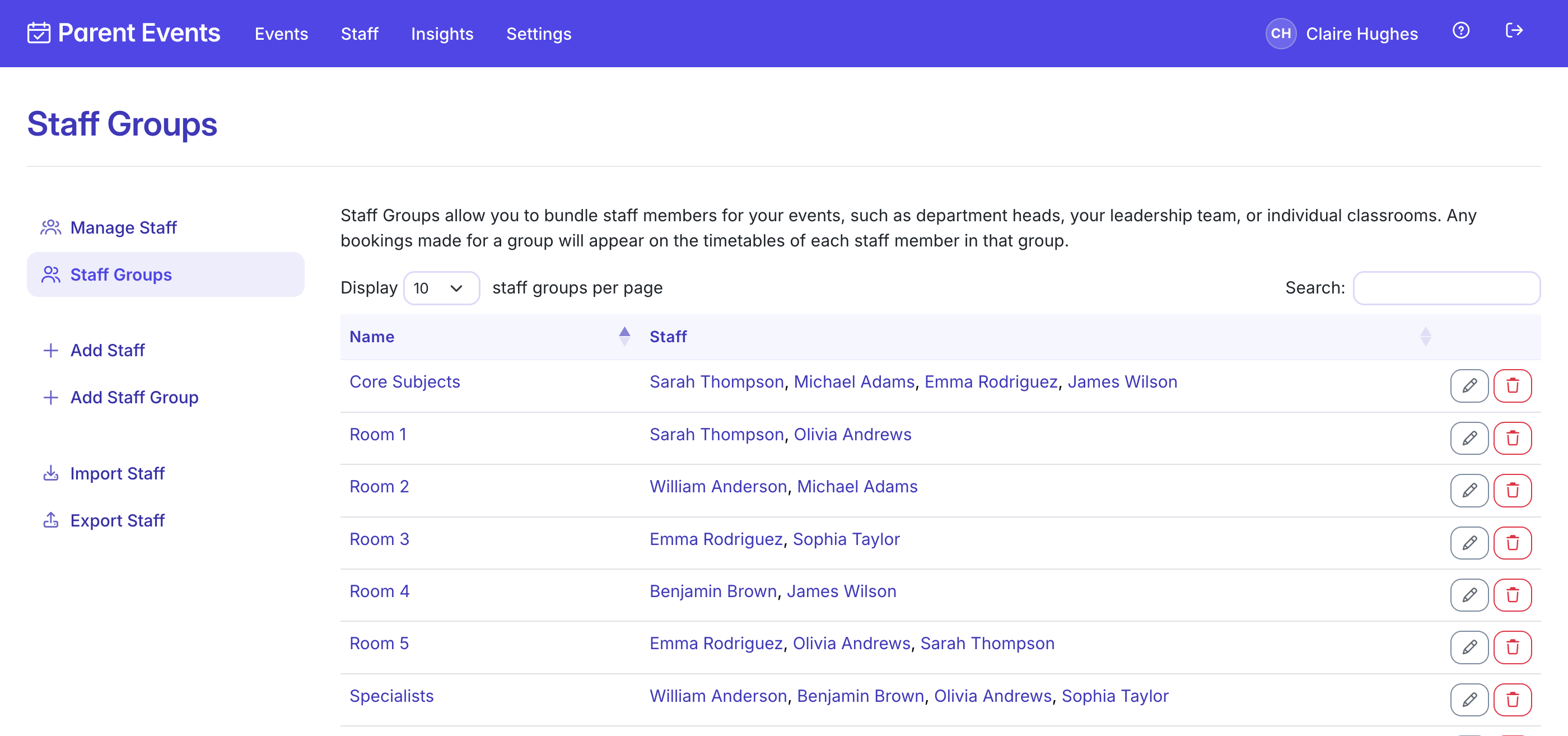
For example, you could make a group for:
- department heads
- your leadership team
- each classroom, so attendees know which option to book
- a teacher and their student teacher
Managing staff groups
From the Staff option in the main menu, choose the Groups option.
From there you can see, add and change your staff groups.
Tips
- An event can be made up only of staff groups, such as one for each classroom.
- Staff groups can have breaks, like an individual staff member.
- Attendees can see the names of the staff in a group.
- Staff added to a group while an event is running get the group's existing bookings.
- Staff removed from a group no longer see the group's bookings on their timetable.
Avoid adding both a staff member and a staff group to one event
If an event has both a staff member and a group they belong to, attendees could book the staff member and the group at the same time, and two families would turn up for one person.