Event staff
For some events, such as parent-teacher conferences, you add staff to the event so parents and caregivers can book them.
Staff on an event can sign in to see their bookings, and receive the event's reminder emails.
To add someone who doesn't have a staff account, such as a relief teacher or visiting specialist, use guest staff.
Each staff member on an event can be set to in-person or online, and you can mix the two within a single event. For in-person staff, you can give them a room that is shown to attendees on their timetable, such as the name of their classroom. Online staff meet their attendees over a built-in video meeting that is prepared automatically, or over your school's own meeting link if you choose Online (own link). If a staff member has a default room or meeting link on their staff record, it's filled in when they're added to an event, and you can change it for that event.
See in-person and online bookings for how each mode works.
Adding staff to an event
- Go to the Events section in the main menu.
- Click the name of the event.
- Click Settings > Staff.
- Click Add staff.
- Tick each staff member or staff group to add. Use the filter box to find someone by name or subject.
- Click Add to event.
To add someone who isn't in your staff list, choose the Guest tab instead. See guest staff.
Changing or removing staff on an event
On the event's Settings > Staff page, change each staff member's meeting type, room or meeting link and available dates, then click Save changes. To take someone off the event, use the trash-can icon on their row.
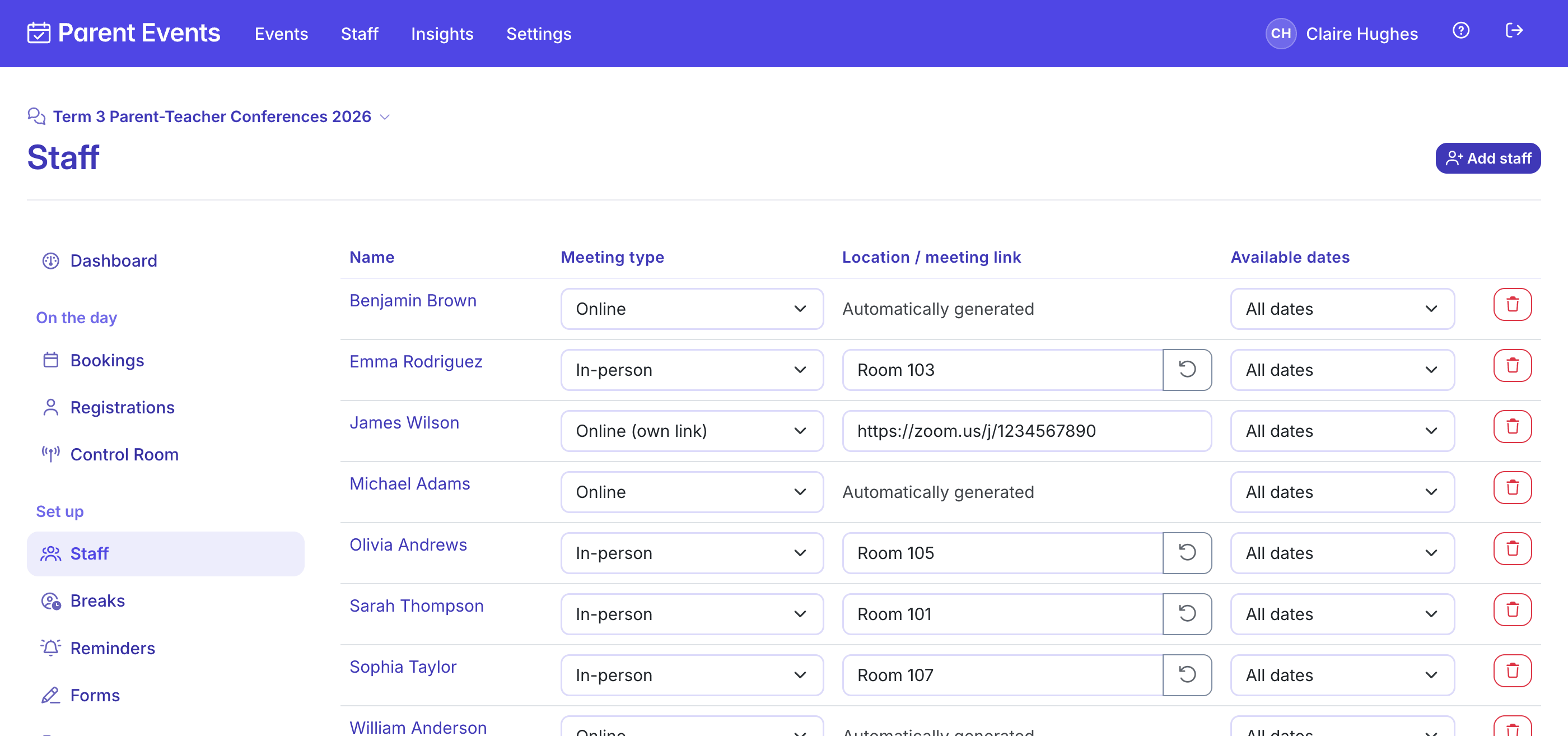
If the staff member has a default room set on their staff record, use the refresh icon to set their room for this event back to that default.