Templates
Templates save an event's setup so you can start new events from it. When you create an event from a template, it copies the template's settings, staff and forms.
Templates suit events you run regularly, such as parent-teacher conferences each term, weekly tours, or uniform fittings before each school year. To copy a single event once, duplicate it instead.
Creating a template
Templates are created from an existing event.
- Set up an event with the settings, staff and forms you want to reuse.
- Choose Save as Template from the actions menu at the top of the event.
- Enter a name and an optional description for the template.
- Click Save as template.
Give templates names that say what they're for, such as "Term conferences, 5 min" or "Saturday tours", and use the description to note when to use each one.
Run an event first, then save it as a template once you're happy with how it went.
Using a template
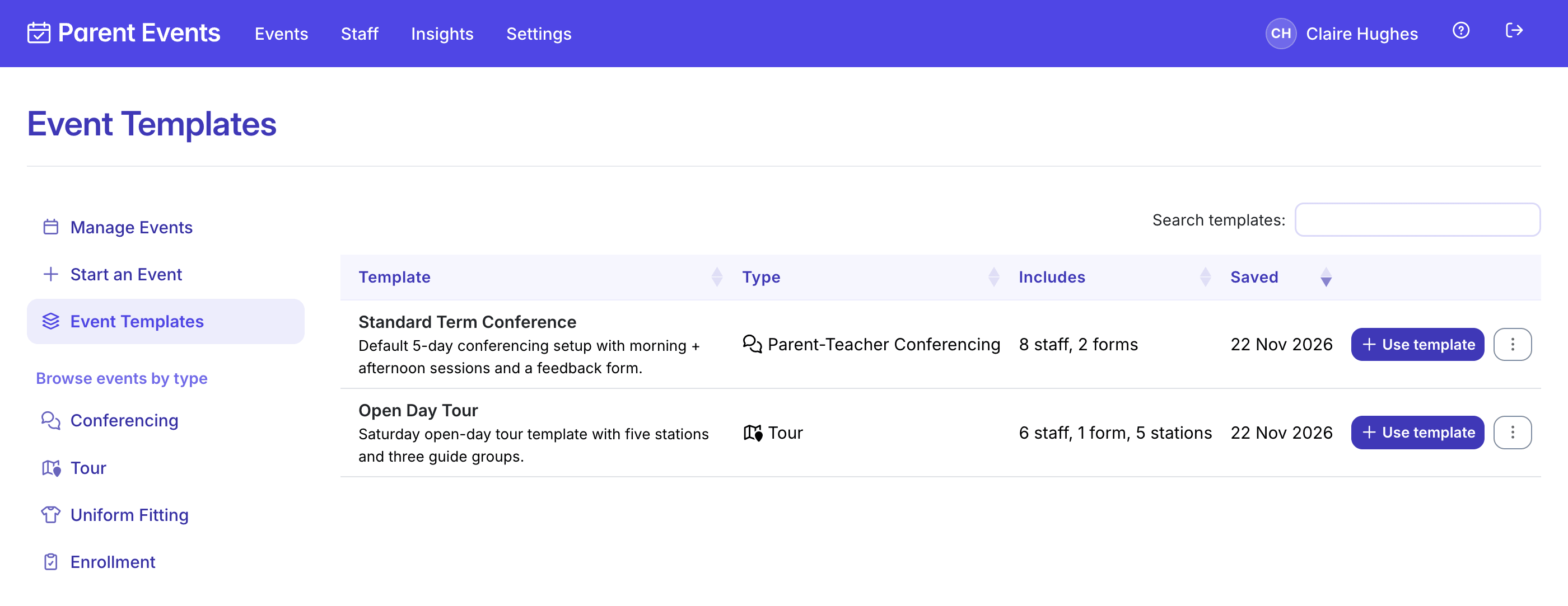
- Go to the Events page.
- Click the Event Templates button.
- Find the template you want to use, and click Use this template.
- Enter a name for your new event.
- Click Create Event.
The new event is created with the template's setup, and you'll be taken to set its dates and times.
Events created from a template are independent of it. Changing the template later doesn't affect events already created from it.
What gets copied from templates
When you create an event from a template, it copies:
- the event's location, booking length, booking limits, booking buffer, optional features, and whether an invite code is required to register
- every staff member assigned to the template, except deactivated staff, which are skipped with a warning
- the registration, booking and feedback forms, with all their questions and settings
It doesn't copy:
- event dates and times, which you set when creating the event
- attendees and bookings
- the event code, invite codes or statistics
- attachments, which you upload to each new event
Updating a template
A template doesn't change when you improve an event created from it. To keep future events up to date, save the improved event as a new template and delete the old one.
Deleting templates
- Go to the Events page.
- Click the Event Templates tab.
- Find the template you want to delete, and click Delete.
- Confirm the deletion.
Deleting a template doesn't affect any events created from it.