Events
An event is where you set up and manage all the details for bookings and communication with attendees and staff. You can run multiple events at the same time with no limits.
Events are completely separate from one another, so bookings, attendees, and reports stay organized and specific to the event they belong to.
Event visibility: Draft, public, and private
Events have one of three modes depending on how you want the event to run.
Draft events
Draft events are not visible to attendees on your event website, and the event code will not work. This is ideal for when you're still setting up the event and not yet ready for it to run.
Once you're ready, you take the event out of draft through the review-and-publish page, where you choose how families will reach the event and check that everything is ready before it goes live.
Publishing an event needs either an active subscription or an event credit. Your first event is free, and on the pay-as-you-go model publishing spends one credit. Subscribers can publish as many events as they like. Once an event has been published it can be unpublished and republished as often as you need without spending another credit. You can read the full process in publishing an event.
An event can be moved back to draft at any time, such as if you suddenly need to take the event offline and prevent further registrations.
Public events
Public events are visible on your event website homepage, and do not require the event code to register for the event. Public events still have an event code that can be used if desired, but it's not a requirement to register.
This is suited for enrollment or uniform fitting events where you might not have the contact information of the people who should attend.
Private events
Private events are not visible on your event website homepage, and people who want to attend must enter the event code in order to register.
Private events are better suited for when only certain people should register, such as an event for a specific classroom or year group where you'll send parents the event code they need to use.
Managing events
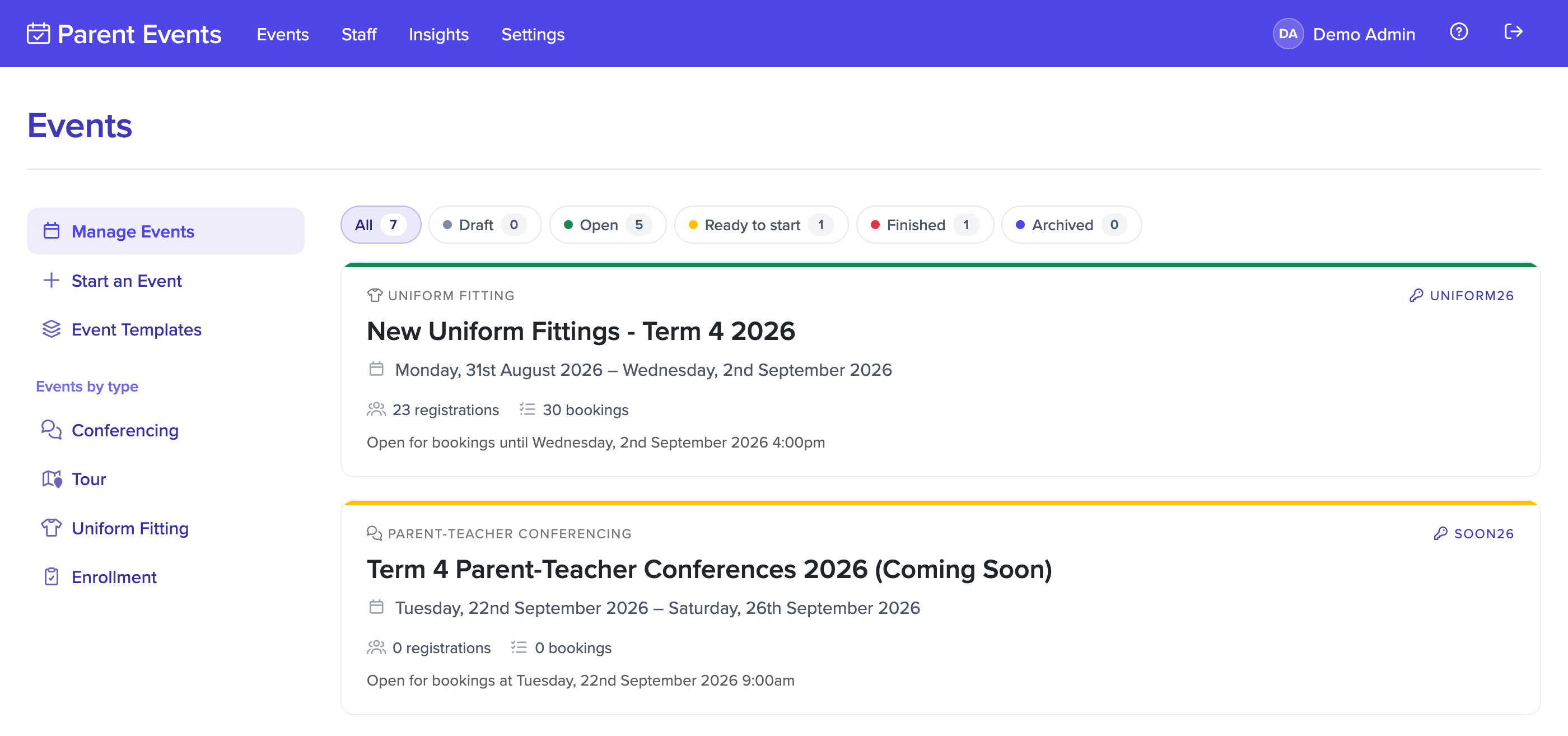
To see your current events, sign into Parent Events and use the Events option in the main menu.
Each event shows the event code, name of the event, and is color-coded depending on whether it's open, closed, or ready to start.
You can manage different areas of your event by clicking on the name or one of the buttons.
Starting an event
To see your current events, sign in to Parent Events and use the Start an Event option under Events in the main menu.
You'll first be asked what kind of event you want to start, and then be able to fill out all information related to the event, such as the:
- name of the event.
- description for attendees.
- where the event is held.
- dates and times for the event.
- any other event-specific information.
Cancelling an event
If you need to cancel an event, you can do so under the Settings > Cancel Event option when managing an event.
You'll be asked to confirm this decision, and can optionally send a notification to all attendees with a message regarding the cancellation.
Cancelling an event will also remove all data associated with the event, including bookings, attendees, reports, statistics, and form responses. This cannot be undone.
When an event is finished
Once an event has completed, the event will remain active in your account for ninety days after it has been completed, where you can continue to view statistics and reports related to the event.
After ninety days, the event will be automatically archived. You can continue to view reports and statistics related to the event (such as the number of bookings and staff breakdowns) but attendee-specific information is deleted, including:
- attendee names and contact information
- student names
- booking comments
- registration form responses
- booking form responses
Feedback forms for an event are retained as these are not linked to an attendee, but any attachments from file upload questions will be removed.
An event is defined as "completed" based on the latter of the event end date, and the last date the event is held on. For example:
- 3rd March 2026: event closes for new bookings
- 27th March 2026: the last date of the event
- 25th June 2026: the event is archived as it's been ninety days since the last date of the event
Further reading
📄️ Publishing an event
While you are setting an event up it stays in draft, where it is hidden from attendees and the event code does not work. When you are ready for families to start registering, you publish the event through a dedicated review-and-publish page. This is the only way an event moves out of draft, so the decision is always made on purpose rather than as a side effect of saving a settings change.
📄️ Enrollment Events
Step-by-step guide to collecting enrollment information and scheduling enrollment appointments.
📄️ Parent-Teacher Conferences
Step-by-step guide to setting up and running parent-teacher conference events.
📄️ Tours
Step-by-step guide to setting up and running school tour events.
📄️ Uniform Fitting
Step-by-step guide to running uniform fitting appointments and uniform orders.