Notifications
Notifications let you email a message to the families registered for an event, such as a change of venue, a parking reminder, or a note from the principal. You can send one to everyone at the event, or only to families booked on certain days or with certain staff.
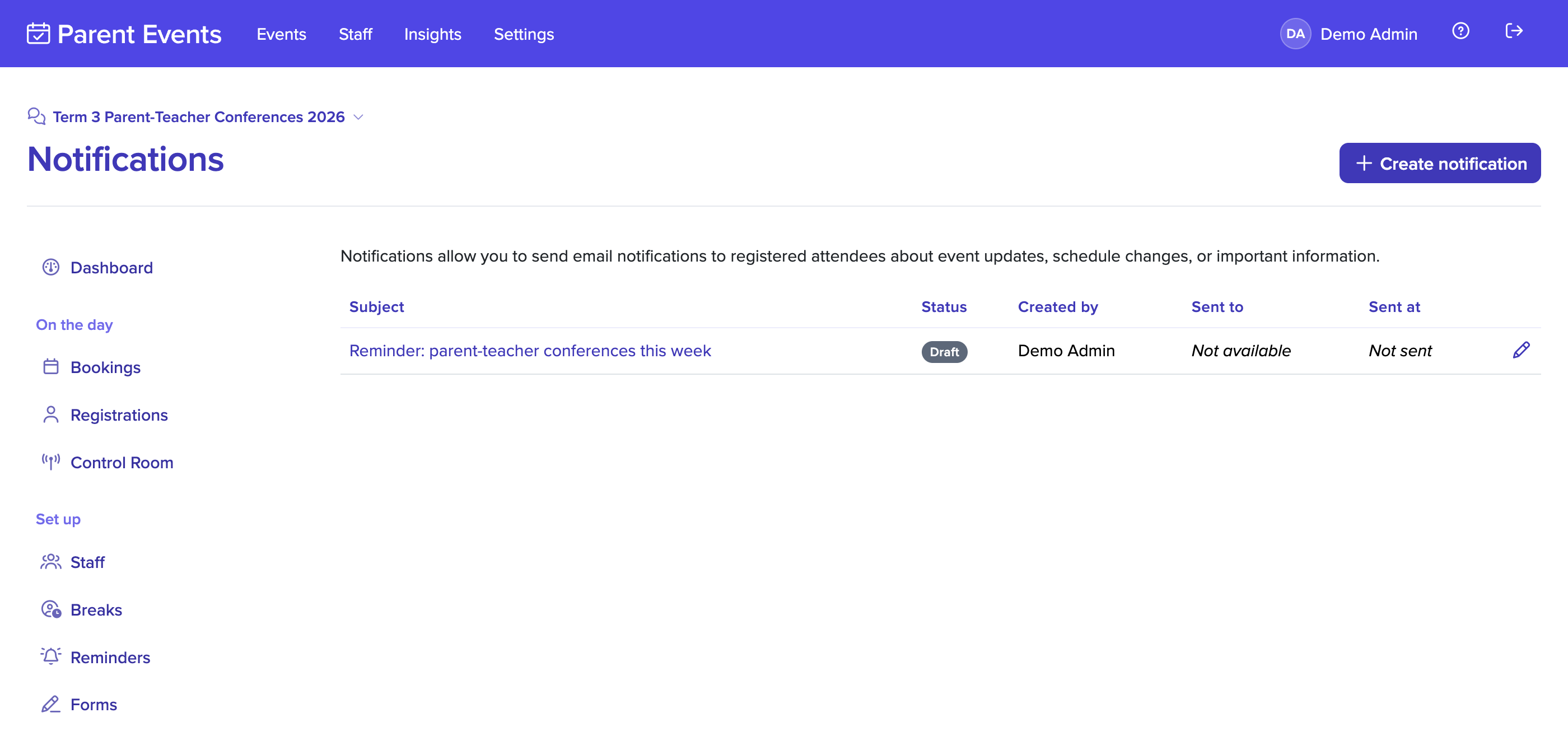
Notifications can be sent once an event is published, from the Notifications section of the event.
Sending a notification
- Click on Events in the main menu, and choose the event.
- Click on Notifications, and create a new notification.
- Enter a subject and the message to send. The message can use simple formatting such as headings, lists, bold text and links.
- Optionally, choose who it goes to (see below).
- Save the notification. You'll see how many families it will reach.
- Select Send now and confirm.
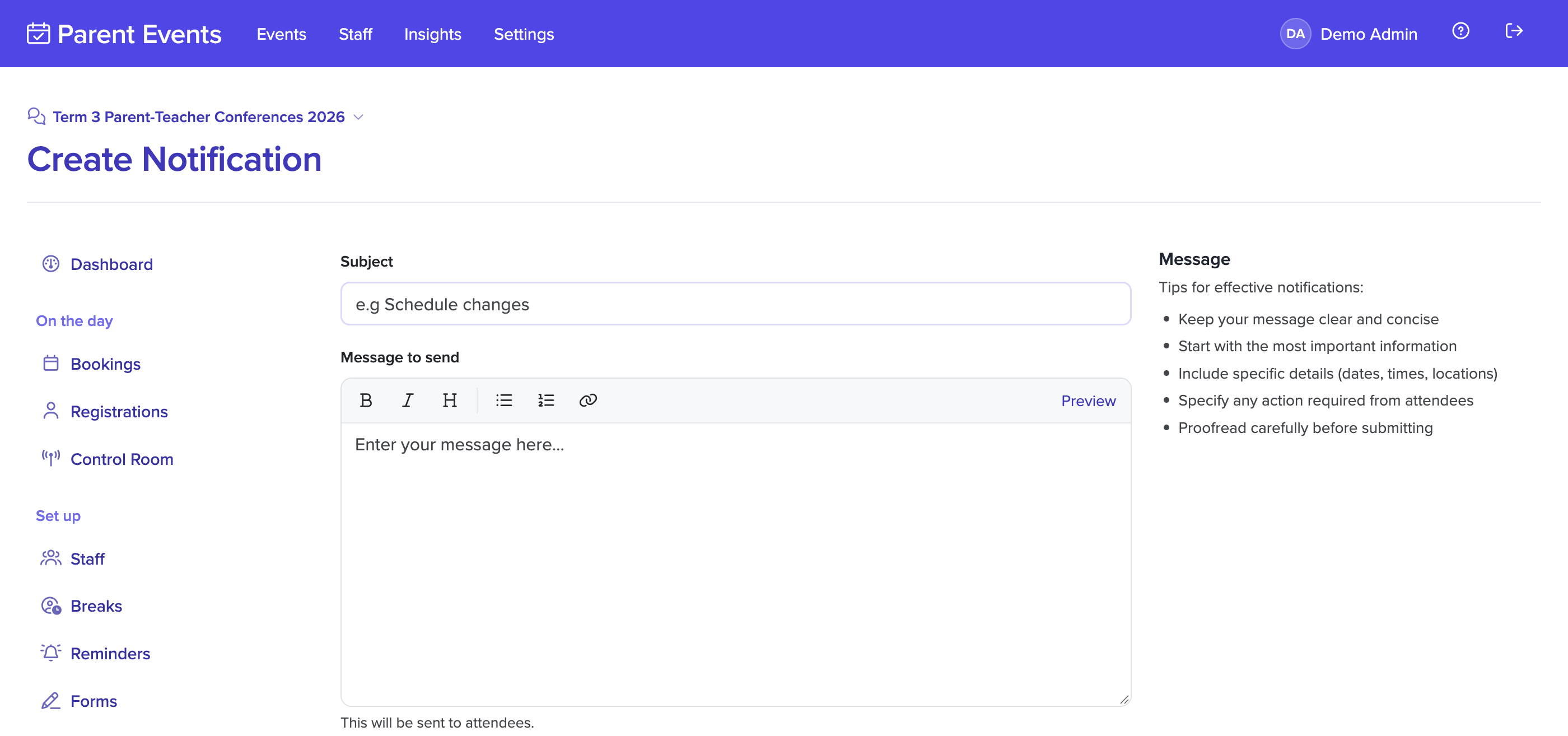
The notification is sent in the background, and its status changes to Sent once every email has gone out. If some emails couldn't be delivered, the notification shows how many.
Choosing who receives it
By default, a notification goes to every family registered for the event. To narrow it down, choose:
- Dates: only families with a booking on one of the dates you choose.
- Staff: only families with a booking with one of the staff you choose.
If you choose both, only families matching both receive it.
Notifications are never sent to:
- families who have opted out of emails from your school, or whose email address has bounced
- families who registered without an email address
- people who haven't registered for the event yet
To reach families who haven't registered, such as when sending out invite codes, use your school's own email system.
Approval
An administrator can choose whether Event Managers can send notifications, and whether their notifications need approval before they're sent. Both are set from the Staff section of the Settings page.
When approval is needed:
- The Event Manager saves the notification and selects Submit for review. The notification can no longer be edited.
- Administrators are emailed that a notification is waiting.
- An administrator approves it, or rejects it with a reason.
- Once approved, the Event Manager sends it.
If an Event Manager edits a notification after it's approved, it goes back to draft and needs approving again. A rejected notification shows the reason and can't be edited, but you can duplicate it, change the copy, and submit that instead.
Notifications created by administrators never need approval.
Reusing a notification
To send a similar message again, open a notification and choose Duplicate. The copy starts as a new draft that you can change before sending.
Each notification keeps an activity timeline of who created, approved and sent it, and when.