Invite codes
Invite codes control who can register for an event. Each family gets their own code, and each code can only be used once. If a code is passed on to someone else, only one of them can register with it.
An event code is different. Everyone shares it, and it only controls whether the event can be found. Invite codes work with both public and private events.
| Listed on your event website | To reach the event | To register | Suits | |
|---|---|---|---|---|
| Public | Yes | Nothing | Nothing | Open events anyone can attend |
| Private | No | Event code | Nothing | Events for a specific group |
| Public, invite-only | Yes | Nothing | Invite code | Events you want to promote widely while limiting who attends, such as a scholarship interview day or a capped enrollment session |
| Private, invite-only | No | Event code or invite code | Invite code | Events for invited families only, where the event itself stays out of sight |
The diagram shows how a family gets to registration:
Use invite codes when only certain families should attend, or when you need to cap the number of registrations. If you only want to keep an event off your event website, make it a private event instead.
Turning on invite codes
Tick Require an invite code to register when you start a new event, or later on the event's Settings page.
An Invite Codes option then appears in the event menu. You can generate codes while the event is still a draft, but they only work once the event is published.
Nobody can register for an invite-only event until it has at least one code. The readiness checklist reminds you to generate codes, and flags it as a problem once the event is published.
If you turn the option off, families can register without a code. Your codes are kept in case you turn it back on.
Generating codes
- Click on Events in the main menu.
- Choose the event name from the list, and click Invite Codes.
- Choose how to generate the codes:
- A set number of codes creates codes that aren't linked to anyone.
- One code for each name on a list creates a code for each line you paste in, such as a column of family names or student IDs. Each line is saved as the code's label, so you know who it was for.
- Click Generate codes.
You can generate up to 2,000 codes at a time, as many times as you need.
Codes look like K7WM-4PXH. They leave out characters that are easy to mix up, such as O and 0, and families can type them with or without the hyphen.
Sending codes to families
Parent Events can't email invite codes for you, because families aren't on the event until they register. Send them yourself instead:
- On the Invite Codes page, click Export CSV.
- Mail merge the CSV from your email tool or student management system, using the labels to match codes to families.
The list is also available as a PDF, from the Invite Codes page or the event's Reports.
Families can use their code in three ways:
- A link with the code in it. Add
?invite=and the code to the event's registration link: https://customername.parentevents.com/REPLACEME/register?invite=K7WM4PXH. Replacecustomernamewith your event website address,REPLACEMEwith the event code, andK7WM4PXHwith the family's code. This works well in emails, or as a QR code on a letter. - On your event website. The code box on your event website accepts an invite code and takes the family to the right event, so they don't need the event code too.
- When they register. A family without a code is asked for one before they sign in with their email.
For printed invitations, the Invite Flyers report prints one flyer for each unused code, with a QR code that takes the family straight to registration.
Tracking uptake
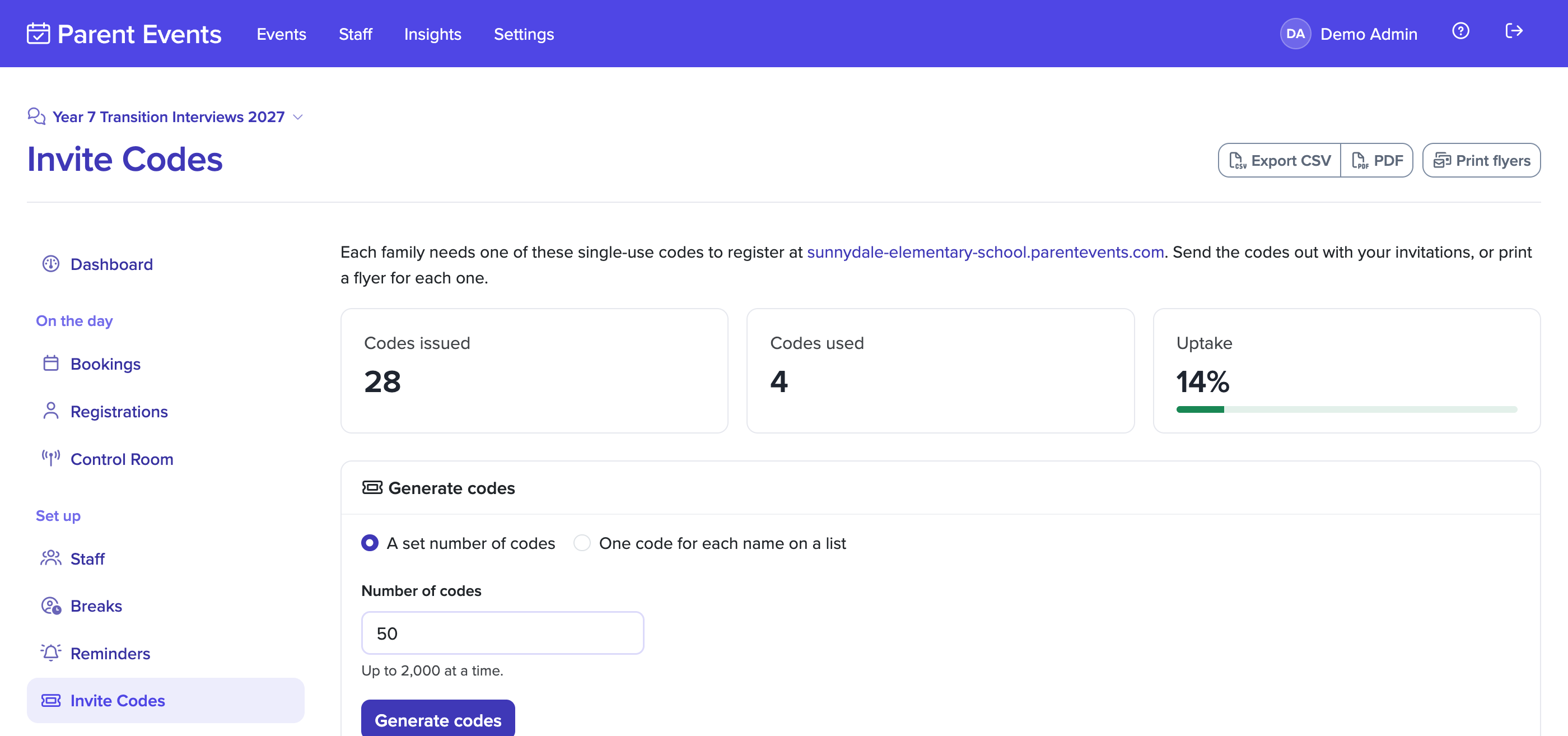
The Invite Codes page shows how many codes you've issued, how many have been used, and the uptake percentage. The event dashboard shows the same figure instead of the attendee count.
Each code is listed with its label and whether it is Available or Used. Used codes also show who registered with them and when. The Registrations page gets an Invite code column, so you can check registrations against your list.
Uptake is kept after the event is archived.
Removing codes
You can delete codes that haven't been used, either one at a time or all at once with Delete unused codes. Deleting unused codes when invitations close makes sure nobody else can register.
Used codes can't be deleted. If a family shouldn't have registered, remove their registration instead. This frees up their code so it can be used again.
Templates and archiving
Events created from a template keep the invite code setting, but not the codes. Generate new codes for each event.
When an event is archived, code labels are cleared along with other attendee details. The record of which codes were used is kept, so uptake stays accurate.