Maps
Maps lets you upload campus maps, floor plans and parking guides once, and show them to families on your event website for any event.
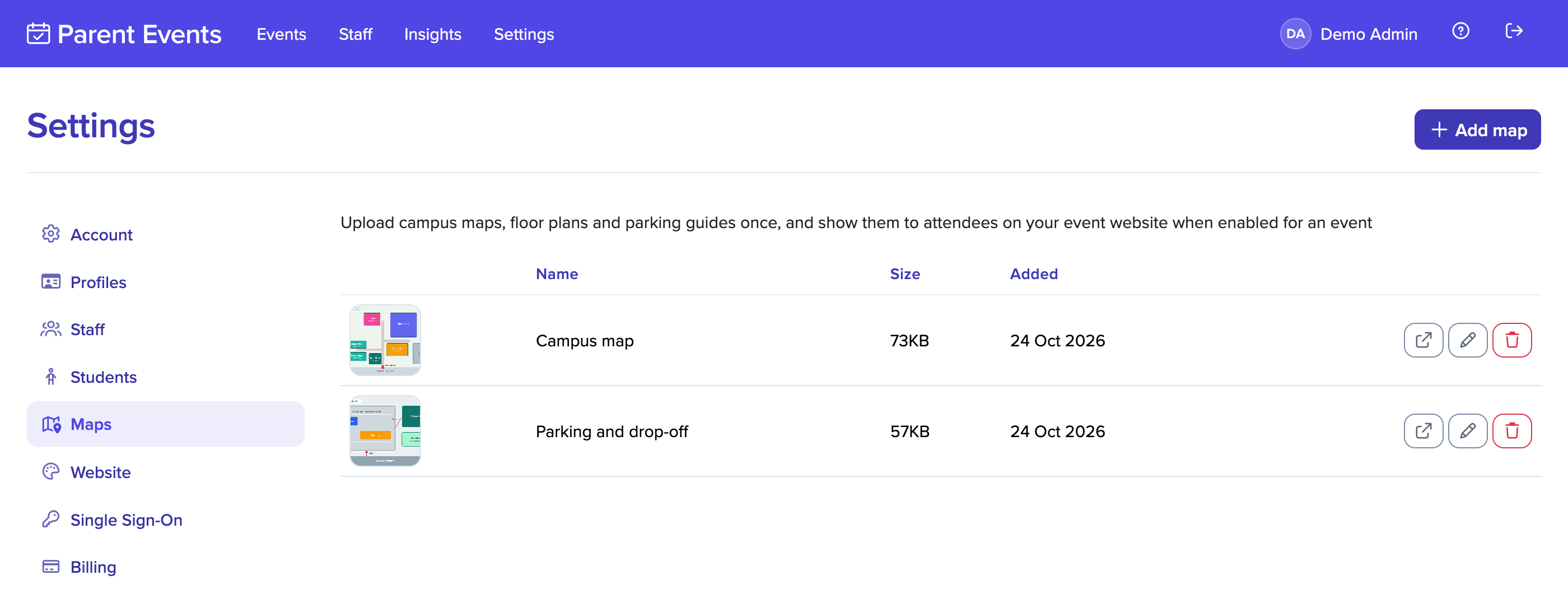
Uploading a map
- Go to the Maps section of the Settings page.
- Select Add map, choose the file, and give the map a name, such as "Main campus" or "Staff car park".
- Upload it.
Maps can be JPG, PNG, WebP or GIF images, or PDFs, up to 10MB. Large images are resized so they load quickly on phones while staying sharp enough to zoom in on.
You can rename or remove a map at any time. Changes apply straight away to every event showing maps.
Showing maps on an event
- Open the event and go to its Settings.
- Tick Show maps to attendees, and save.
A Maps tab then appears on the event website, showing every map you've uploaded. The option appears in an event's settings once the event has been created.
The Maps tab is shown to families once they've registered for the event. For files only one event needs, use attachments.