Student fields
Student fields let you ask families for extra information about each student they add, such as your school's student ID or the student's year level. This makes it easier to match bookings back to your own records.
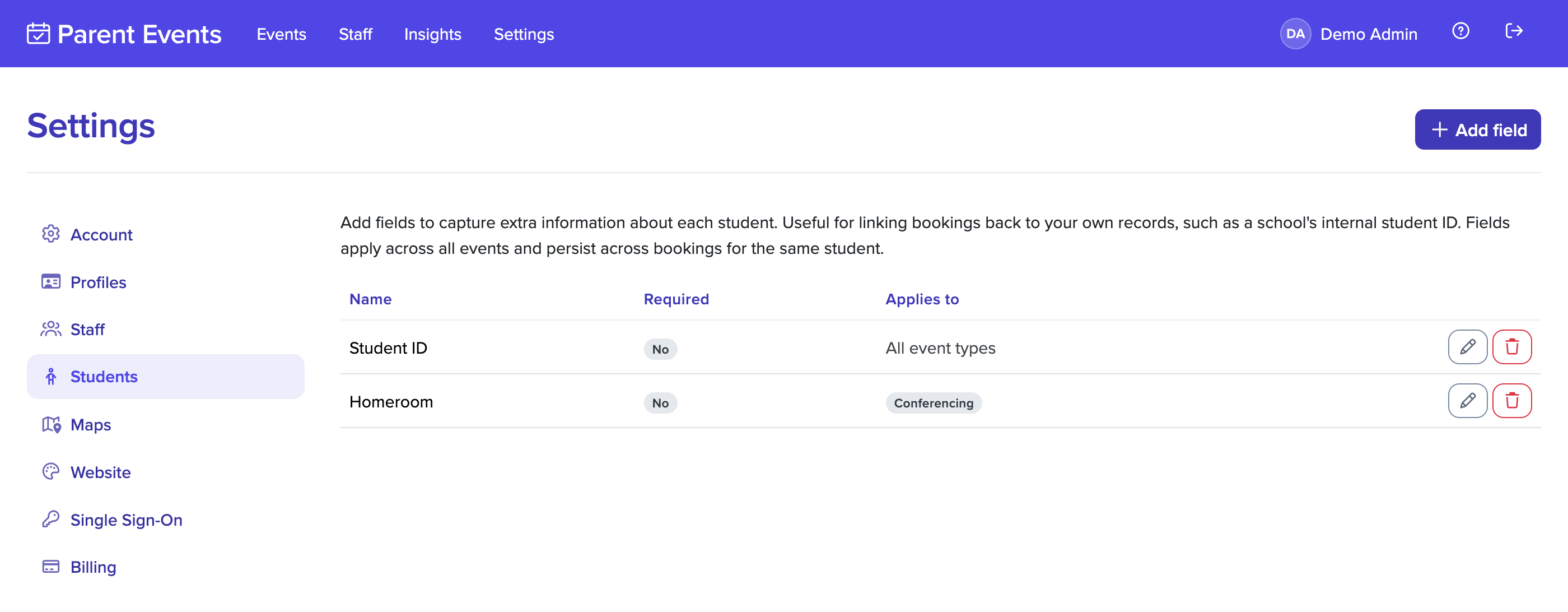
Fields apply across all your events. A family fills them in once when they add a student, and the answers stay with that student for future events.
Adding a field
- Go to the Students section of the Settings page.
- Enter the field name, such as "Student ID".
- Tick Required if families must fill it in when adding a student.
- Choose which event types it applies to, or leave them all unticked to apply it to every event type.
- Select Add field.
Use the edit button next to a field to change its name, whether it's required, or the event types it applies to.
Where the answers appear
- when viewing a booking, alongside the student's name
- in the bookings download from an event's Bookings page
Removing a field
Use the remove button next to a field. It's no longer shown when families add or edit a student.
Related
- Forms, for questions asked once per event
- Profile tags